 Webflow
How to add a widget to Webflow
Embed your Shareables widget on your Webflow site.
Copy your widget’s embed code
Open the Share modal in your widget editor and copy your embed code. See How to install on your website for detailed steps.
Add an Embed element in Webflow
- Open your Webflow project
- Navigate to the page where you want the widget
- Add an Embed element from the Add panel (or press A)
- Drag it to your desired location
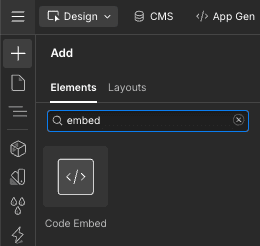
Paste the code
- Double-click the Embed element
- Paste your Shareables embed code
- Click Save & Close
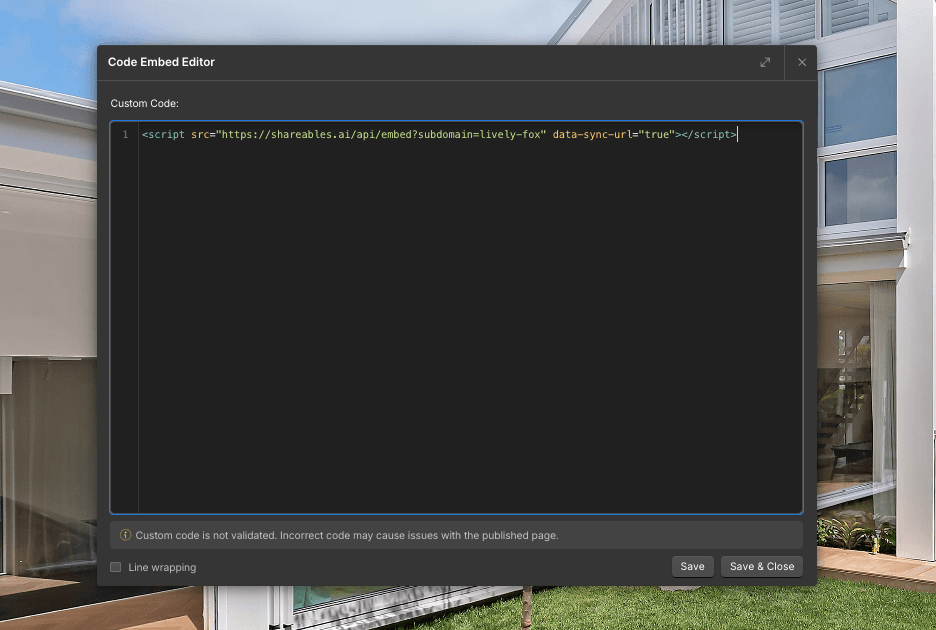
Publish your site
- Click Publish in the top right
- Select your domain(s)
- Click Publish to Selected Domains
The widget won’t display in the Webflow Designer preview. Publish your site to see it live.
Responsive behaviour
Shareables widgets are responsive by default. In Webflow:
- Set the Embed element width to 100%
- The widget will adapt to the container width
- Mobile layouts are handled automatically
Troubleshooting
Widget not showing
- Check the embed code was pasted correctly
- Ensure the page is published (not just saved)
Widget looks wrong
- Check the Embed element isn’t constrained by a small container
Last updated on
 WordPress