How to add filters to your widget
Allow your visitors to filter data in your widget.
Adding Filters
Filters let visitors narrow down the data displayed in your widget based on specific criteria.
- Open your widget in the editor
- Go to Filters tab in the right sidebar
- Enable filters to start adding filter fields
- Add your filters, by selecting which data source field you’d like your users to filter by
By default, filters only show options that exist in your data. Empty values are automatically excluded. You can override this with Predefined Options.
Pro tip: In your Google Sheet, use comma-separated values if you want an item (row) to match multiple values for a filterable column. E.g. Red, Green
How do multiple filters work?
When visitors use multiple filters, we use AND logic between the filters but OR logic inside one filter.
For example, if you have a filter for Size and a filter for Colour:
- Selecting
SmallandMediumin the Size filter shows items that are Small OR Medium - Then selecting
Redin the Colour filter shows only items that are (Small OR Medium) AND Red
This means visitors can select multiple options within a single filter to broaden results, while adding more filters narrows results down.
Filter customisation
Filter Layout
- Top - Each filter will side by side along the top (under your search bar if turned on)
- Sidebar - Filters will appear stacked on the left of your widget
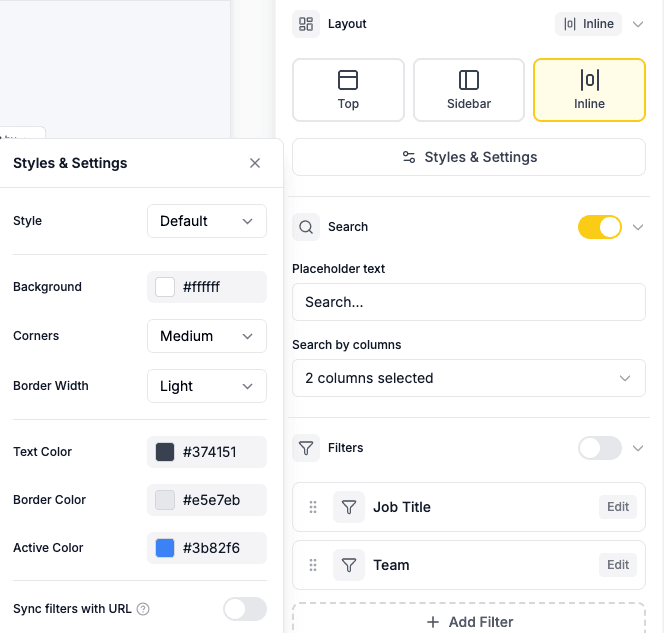
- Inline - Filters, Search and Sorting buttons will appear inline at the top of your widget
Filters can also be further customised in the Styles and settings dropdown
You can also change the order of filters, by dragging them in the sidebar
Filter Types
Each filter has a Filter Type that controls how it looks and behaves. You can choose the type when adding a filter or change it later in the Edit Filter popup.
- Dropdown (default) — A collapsible section with checkboxes. Visitors click to expand, then select options from a list. Best for filters with many options.
- Buttons — Filter options are shown as clickable pill buttons in a row. Visitors can tap to toggle options on or off instantly. Best for filters with a small number of options (e.g. categories, statuses) where you want all choices visible at a glance.
- Range — Shows min/max number inputs for numeric filtering. Visitors enter a minimum and/or maximum value to filter by a numeric range (e.g. price between 100 and 500).
- Date — Shows date picker inputs for filtering by date range. Visitors select a start and/or end date using a native calendar picker. The date format displayed adapts to each visitor’s browser locale.
To change the filter type:
- Click on a filter in the sidebar to open Edit Filter
- Under Filter Type, select the type you want
Date filter options
When using the Date filter type, a Date Range toggle is available. This is on by default, showing both “From” and “To” date pickers. Turn it off to show a single date input instead.
The Range and Date filter types use the same URL parameter format: range:MIN~MAX. See URL Parameters below for examples.
Multi-select vs Single-select
By default, filters are multi-select — visitors can select multiple options at once (e.g. choosing both “Red” and “Blue” in a Colour filter). Each filter has a Multi-select toggle in its settings.
Turn off the Multi-select toggle to switch to single-select mode. In single-select mode, visitors can only choose one option at a time — selecting a new option automatically deselects the previous one.
To change the selection mode:
- Click on a filter in the sidebar to open Edit Filter
- Toggle Multi-select on or off
Single-select works well for filters where only one value makes sense at a time, such as a “Sort by” or “View” filter where options are mutually exclusive.
Dynamic Filtering
When you have two or more filters, you can enable Dynamic filtering to make filters context-aware. When a visitor selects a filter value, the options in other filters automatically update to reflect what’s actually available in the remaining results.
For example, if your widget has a Brand filter and a Colour filter, and a visitor selects “Nike” as the brand — the Colour filter will grey out any colours that don’t exist for Nike products. This prevents visitors from selecting filter combinations that return no results.
To enable dynamic filtering:
- Open the Filters tab in the editor
- Toggle on Dynamic filtering (appears when you have 2+ filters)
- Optionally toggle on Show result counts to display the number of matching items next to each filter option
Dynamic filtering works with all filter layouts (Top, Sidebar, and Inline) and supports both large and small datasets.
Predefined Options
By default, filter options are automatically extracted from your data and sorted alphabetically. Predefined Options lets you define exactly which options appear and in what order.
This is useful when:
- You want a specific order (e.g. months in chronological order: January, February, March… instead of alphabetical)
- You want to control which values appear as filter options
- You want options to always be visible, even if no items currently match
To set up predefined options:
- Click on a filter in the sidebar to open Edit Filter
- Scroll down and toggle on Predefined Options
- The current values from your data will be imported automatically
- Drag options to reorder them
- Remove options you don’t want by clicking the X
- Add new options by typing in the input field
- Click Import from data to add any new values from your data source
Predefined options always appear in the filter, even when no items match that option. With Dynamic Filtering enabled, options with no matching results will appear greyed out with a count of 0.
Sync Filters with Page URL
Enable Sync with page URL in the Share modal to synchronize filter selections with the browser’s URL. When enabled:
- Filter selections are added to the page URL as query parameters
- Users can bookmark or share filtered views
- The back button navigates through filter history
- Pages load with filters pre-applied when accessed via a filtered URL
To enable this feature:
- Open the Filters tab
- Click the Styles & Settings button
- Toggle on Sync with page URL
For embeds, this adds data-sync-url to your embed code:
<script src="https://embed.shareables.ai/embed.js" async></script>
<div data-shareables-embed="YOUR_SITE_ID" data-sync-url></div>
URL sync is designed for single-widget pages. If you have multiple widgets on the same page, only enable URL sync on one of them — otherwise they’ll conflict over the parent URL state.
Detail Page Deep Linking
When URL sync is enabled and your widget has a details page turned on, opening a detail page also syncs the current item to the URL using a _slug parameter. This means:
- The page URL updates to include
?_slug=item-namewhen a visitor opens a detail page - Sharing that URL takes the recipient directly to the same detail page within the embed
- The
_slugparameter works alongside filter parameters — e.g.?Status=Active&_slug=my-product - Navigating back to the list automatically removes
_slugfrom the URL
This is useful when you want visitors to be able to share or bookmark a specific item within an embedded widget.
URL Parameters
You can pre-filter your widget by adding URL parameters. This works whether or not URL sync is enabled.
Format
Add parameters to your page URL using this format:
https://yoursite.com/page?FilterName=ValueExamples
Filter by a single value:
?Status=ActiveFilter by multiple values (same filter):
?Category=Tech&Category=DesignCombine multiple filters:
?Status=Active&Category=Tech&Location=RemoteRange and Date filters via URL
Range and date filters use the range:MIN~MAX format. You can provide both bounds or just one:
Filter by numeric range:
?Price=range:100~500Filter by date range:
?Date=range:2026-01-01~2026-03-08Filter from a date onwards:
?Date=range:2026-01-01~Filter up to a date:
?Date=range:~2026-03-08Filter by exact date:
?Date=range:2026-03-08~2026-03-08Date values in URL parameters must use the YYYY-MM-DD format (e.g. 2026-03-08). Filter names are case-sensitive and must match your column name exactly. If your column name contains spaces, URL-encode them (e.g. ?Start%20Date=range:2026-01-01~).
URL Parameter Builder
The URL Parameter Builder is a visual tool in the Share Modal that helps you quickly construct URL parameters without manually typing them.
To open it:
- Click Share on your widget
- Expand the Filter, Search & Sort Widget URL Parameter Builder section
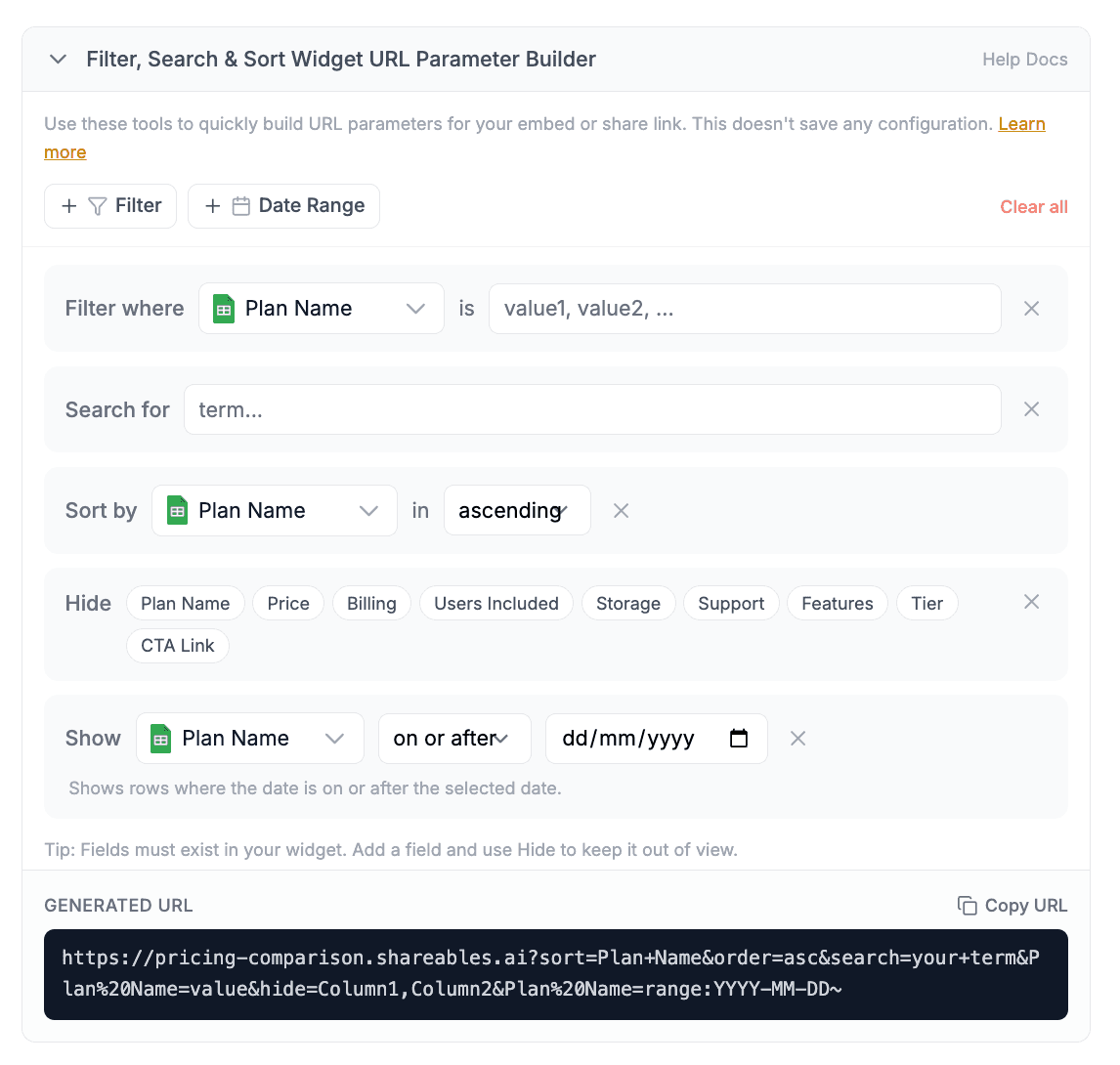
The builder lets you visually add:
- Filters — Select a column and type comma-separated values (e.g.
Tech, Design) - Search — Pre-fill a search term
- Sort — Choose a column and sort direction (ascending or descending)
- Hide columns — Toggle columns to hide from the widget display
- Date Range — Filter by date with modes: between two dates, on or after, on or before, or on an exact date
As you configure each section, the Generated URL updates in real time at the bottom. Click Copy URL to copy it to your clipboard for sharing.
When at least one parameter is set, the builder also shows a data-params attribute row below the URL. This is the embed-attribute form — copy it and paste directly into your embed’s <div data-shareables-embed> to pre-apply the same filters every time the widget loads:
<div data-shareables-embed="YOUR_SITE_ID" data-params="Status=Active&sort=Price&order=desc"></div>The URL Parameter Builder doesn’t save any configuration — it’s a quick tool to help you construct the right parameters in either format. Both outputs follow the same format documented in the sections above.
Filtering by columns not visible in your widget
URL parameters filter against all columns in your published data — not just the ones you’ve added as fields in the widget. Any column from your data source view (Airtable) or table (Google Sheets, Notion, etc.) is automatically available for URL filtering without needing to add it as a widget field.
For example, if your Airtable view has a “Category” column but you haven’t added it as a field in your widget, you can still filter by it using ?Category=News.
Hiding Fields via URL
You can hide specific fields, badges, and buttons from your widget by adding a hide parameter to the URL. This is useful when you want to share the same widget with different audiences — for example, hiding an “Update Status” button from public viewers.
Format
?hide=ColumnNameThe hide parameter accepts the column name from your data source (not the display label). To hide multiple columns, separate them with commas:
?hide=Status,Price,InternalURLHow it works
- Matching is case-insensitive —
?hide=statuswill hide a field bound to the “Status” column - If a column is used in multiple places (e.g. as both a field and a badge), all instances are hidden
- Matched fields are removed from both the list view and the detail page
- The
hideparameter works alongside filters, search, and sorting without interference
Using with embeds
Add the hide parameter directly to your embed script URL:
<script src="https://shareables.ai/api/embed?subdomain=YOUR_SITE_ID&hide=Status,InternalURL"></script>The hide parameter is a static setting — it stays in place regardless of how visitors interact with filters or search. It cannot be changed by the visitor.
Group Collapse via URL
If your widget uses the Table layout with row grouping, you can control whether the groups start collapsed or expanded using a groups parameter.
Format
?groups=collapsed
?groups=expanded
collapsed loads the table with every group collapsed; expanded loads them all open. This overrides the Start collapsed setting configured on the widget.
How it works
- It sets the initial state only — visitors can still click any group header to expand or collapse it afterwards
- Values are case-insensitive; any unrecognised value is ignored and the widget falls back to its configured setting
- It works alongside filters, search, sorting, and
hidewithout interference, e.g.?groups=expanded&Status=Active
Using with embeds
Add it to your embed script URL or the data-params attribute, the same way as other parameters:
<script src="https://shareables.ai/api/embed?subdomain=YOUR_SITE_ID&groups=collapsed"></script>Clearing Filters
All filter layouts include a way to clear active filters:
- Top layout — A “Clear all” link appears next to the filter buttons when any filter is active
- Sidebar layout — A “Reset” button appears at the bottom of the sidebar
- Inline layout — A “Clear all” link is inside the filter dropdown panel
No Results Found
When filters return no matching results, you can customise the message shown to visitors. See Empty State for more details.
Widget Language
Filter labels like “Filters”, “Clear all”, and “Reset” automatically adjust based on your widget language setting.
Filter Icons
You can add an icon next to each filter label. Click on a filter to open the editor, then click the icon button to the left of the label input. Browse or search for an icon to select it.
Related
- Conditional Item Visibility - Hide items from your widget using creator-configured rules (visitors never see these rules)
- Search - Let visitors search through your widget data
- Sorting - Allow visitors to reorder data
- Pagination - Control how many items display at once
- Widget Language - Change the language of your widget