Password Protection
Restrict access to your widget by requiring visitors to enter a password before viewing your content.
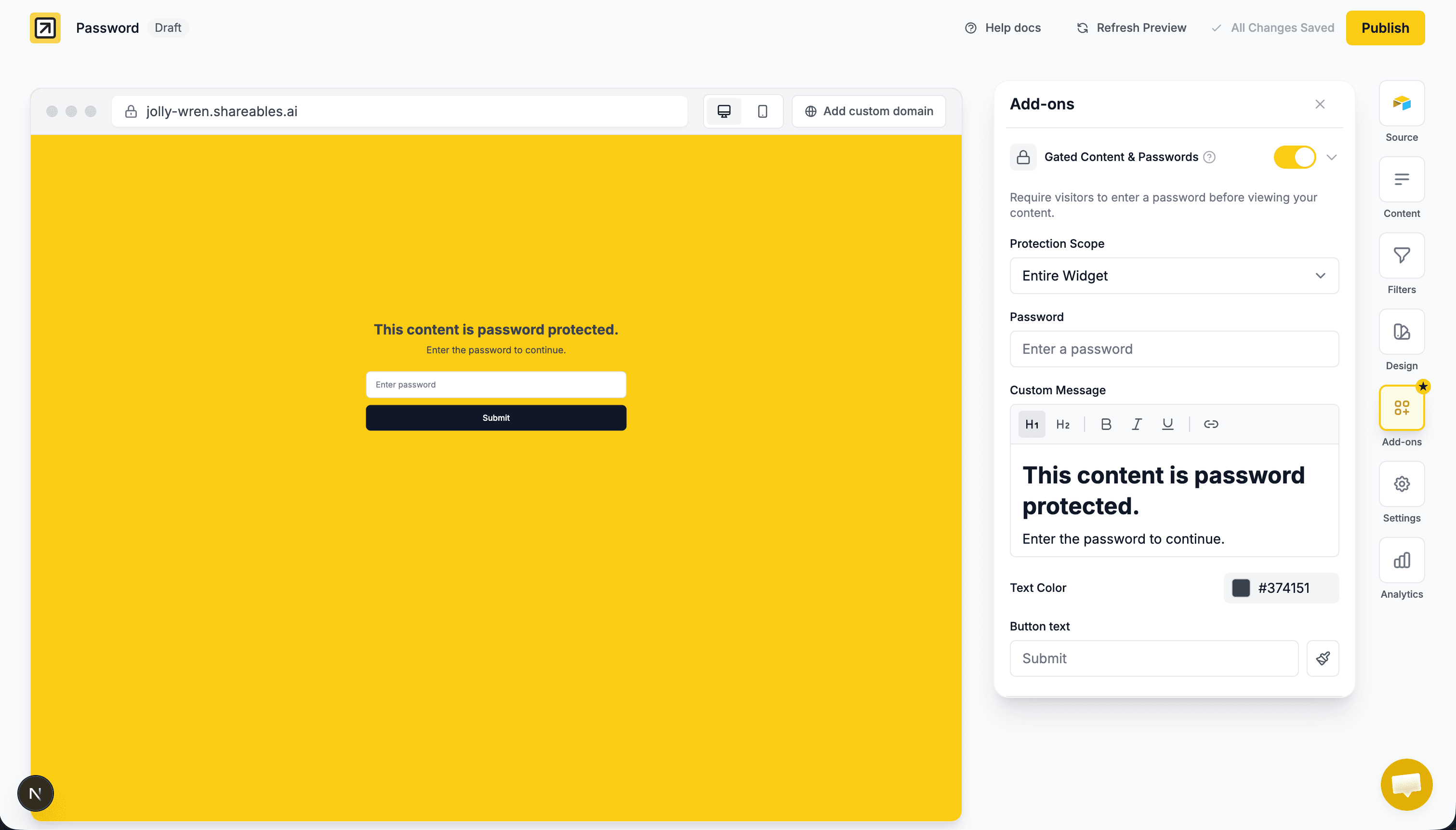
How it works
When password protection is enabled, visitors will see a gate screen instead of your widget content. They must enter the correct password to unlock and view the data. Once unlocked, the session persists for 24 hours so they won’t need to re-enter the password on every page.
Your data is protected server-side — it is never sent to the browser until the correct password is provided.
Setting up password protection
Open the Add-ons tab
- Open your widget in the Creator
- Click the Add-ons tab in the sidebar
Enable Gated Content
- Toggle on Gated Content & Passwords
- The accordion will expand to show all settings
Choose a protection scope
Use the Protection Scope dropdown to choose what to protect:
| Scope | What it protects |
|---|---|
| Entire Widget | Both the list view and all detail pages are gated |
| Details Pages Only | The list view is visible, but individual detail pages require a password |
Set a password
Enter a password in the Password field. This is the password visitors will need to enter to access your content.
Customize the gate screen (optional)
You can personalize what visitors see before entering the password:
- Custom Message — Add a rich text message displayed above the password input. Use this to explain what the content is or who should have access.
- Text Color — Change the color of your custom message text.
- Button text — Change the submit button label (defaults to “Submit”).
- Click the paintbrush icon next to Button text to customize the button color, text color, size, and shape.
Live preview: When editing the custom message or button styles, the Creator preview will show you exactly what the gate screen looks like in real time.
Security
Password protection in Shareables uses server-side validation:
- Your widget data is never sent to the browser until the correct password is verified
- The password is hashed before being stored — the plaintext password is never included in the published site
- Authentication uses secure, httpOnly cookies that cannot be accessed or modified via browser JavaScript
- The cookie expires after 24 hours, after which visitors will need to re-enter the password
Password protection is designed for soft access control — keeping content private from casual visitors. It is not a substitute for enterprise-grade security. All visitors share a single password, and the password is not encrypted end-to-end.
Frequently asked questions
Can I use different passwords for different pages?
Not currently. A single password protects all gated pages on your widget.
What happens if I change the password?
Visitors who previously unlocked the widget will need to enter the new password on their next visit (or after their current 24-hour session expires).
Can visitors see my data without the password?
No. When password protection is enabled, the server does not send any widget data to the browser until the password is verified. There is nothing to find in the page source, network requests, or browser dev tools.
Does password protection work with embedded widgets?
Yes. The gate screen will appear inside the embed/iframe and visitors can enter the password directly within it.
Tips
Private pages pattern
Combine password protection (scope: Details Pages Only) with disabling the items list to create standalone private pages. Each page is only accessible via its direct URL and requires a password to view. Visitors won’t see a list of all records or a back button — just the individual page content.
Related
- Items & Details — Enable or disable the items list and details pages
- Custom CSS/JS — Further customize your widget’s appearance
- Publishing — Learn about publishing your widget