How to use pagination
Control how many items display at once and let visitors load more.
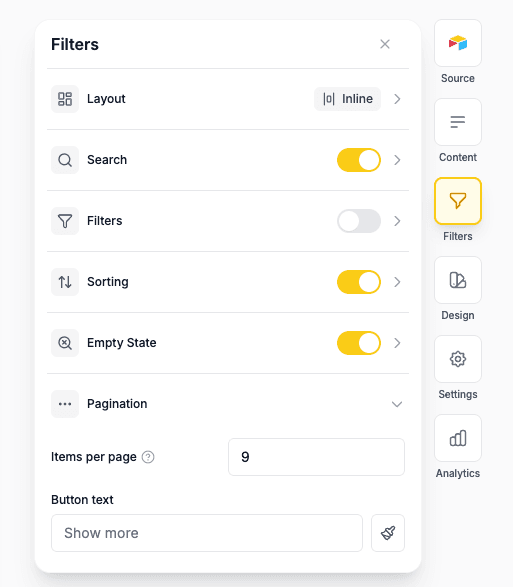
Setting Up Pagination
- Open your widget in the editor
- Go to the Filters tab in the right sidebar
- Expand the Pagination section
- Set your items per page
Pagination Settings
Items Per Page
Set how many items to show before displaying the “Show more” button:
- Maximum: 100 items (after that users will need to click show more)
Smaller page sizes load faster and are better for mobile users.
Max Items
Limit the total number of items that appear on your widget. This is separate from “items per page” — it caps how many items visitors can ever see, regardless of how many times they click “Show more.”
- Default: 1000 (the maximum)
- Range: 1 to 1000
- Set a lower number to only show a subset of your data (e.g. show only the 20 most recent items)
Max items is a display-only limit. All your data is still fetched from your data source — this setting just controls how many items are shown to visitors. Show More still works in batches (controlled by items per page) but stops once the max items limit is reached.
How pagination works
When your widget has more items than the “items per page” setting:
- The first batch of items displays immediately
- A “Show more” button appears below the items
- Clicking the button loads the next batch
- This continues until all items are displayed
Show More Button
- Customise the text shown on the load more button. Leave blank to use the default text for your widget language
- Click the paintbrush icon next to the button text to customise the button appearance, Text colour, Background colour, Size and Shape
Pages (Numbered Pagination)
As an alternative to the Show More button, you can use numbered page navigation.
To enable it, go to the Pagination section and change the pagination type to Pages.
- Page numbers appear at the bottom of the widget (1, 2, 3…)
- Visitors can jump to any page directly
- The active page is highlighted so visitors always know where they are
- When changing pages, the widget automatically scrolls to the top of the list
You can customise the appearance of the page numbers: Text colour, Active background colour, Size, Shape, and Font weight — the same options available for the Show More button.
Results Counter
Show visitors how many items are displayed, optionally out of how many total.
Setting Up Results Counter
- Open your widget in the editor
- Go to the Filters tab in the right sidebar
- Expand the Results Counter section
- Toggle it on
You can also click the results counter text in the preview and click the gear icon to jump straight to its settings.
Display Mode
Choose between two display formats:
- Showing X of Y items — Shows the filtered count vs. total (e.g. “Showing 12 of 100 products”). Best when visitors use filters or search.
- Showing X items — Shows just the count (e.g. “Showing 100 products”). Simpler, good when filters aren’t the focus.
Custom Label
Replace the default word “items” with something specific to your content:
- “products” for an online store
- “events” for an event listing
- “properties” for real estate listings
Leave it blank to use the default label for your widget language.
How It Works Across Layouts
The results counter appears inline with your search, filter, and sort controls on all three filter layouts (inline, top, and sidebar). On mobile, it wraps to its own line.
Empty State
Customise what visitors see when no data matches their search or filters.
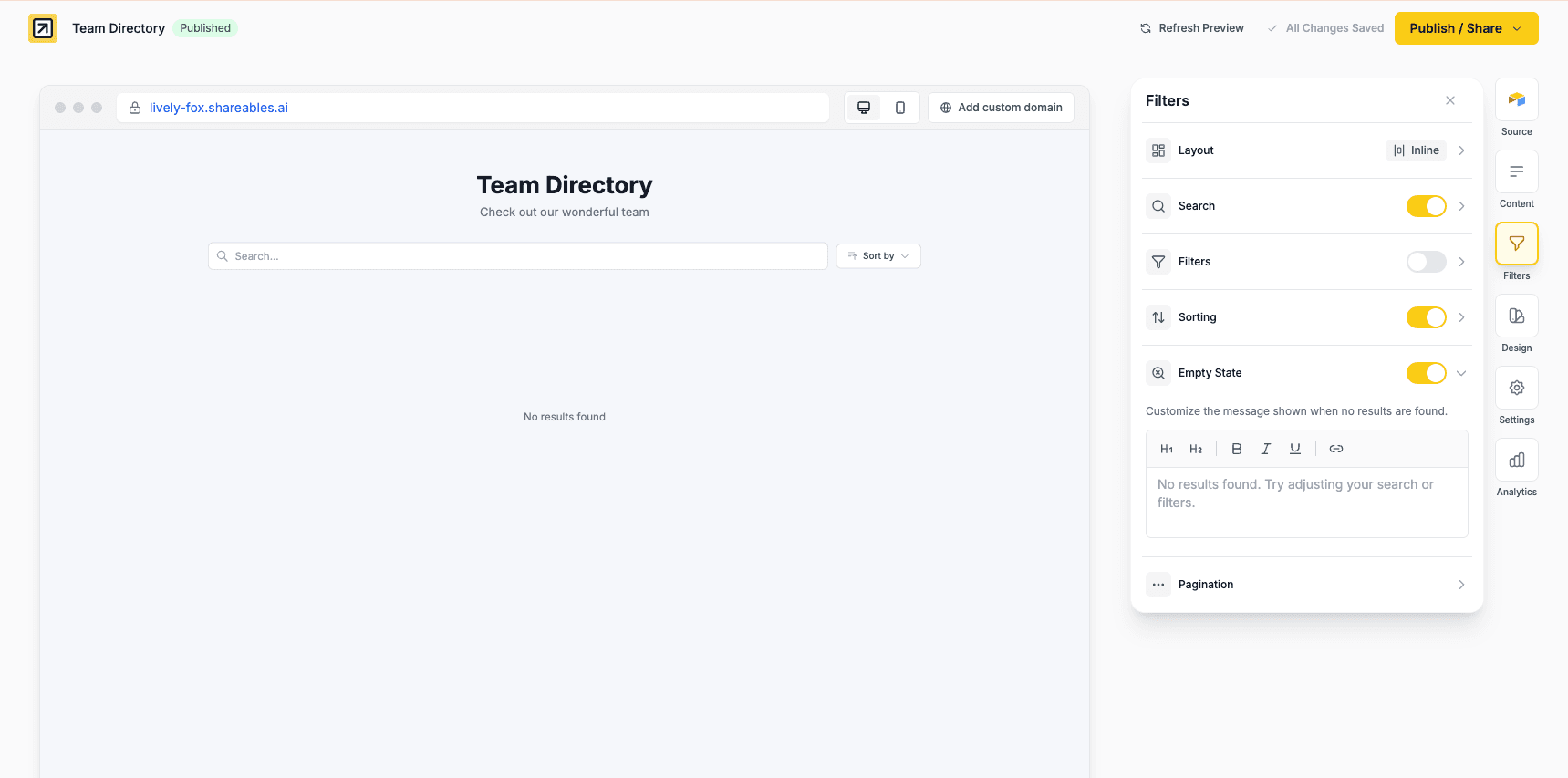
Setting Up Empty State
- Open your widget in the editor
- Go to the Filters tab in the right sidebar
- Expand the Empty State section
- Toggle it on and enter your custom message
Default Message
By default, visitors see “No results found” when search or filters return no matches.
Customising the Message
You can add custom text with basic formatting to help guide visitors:
- “No matches found - try adjusting your filters”
- “Nothing here yet - check back soon”
- “No products match your criteria - try removing some filters”
A friendly, helpful empty state message improves user experience and reduces frustration.