Charts Widget
Visualize your spreadsheet data with interactive charts. Supports multiple chart types powered by any connected data source.
Chart Types
When creating a Chart widget, choose from the following chart types:
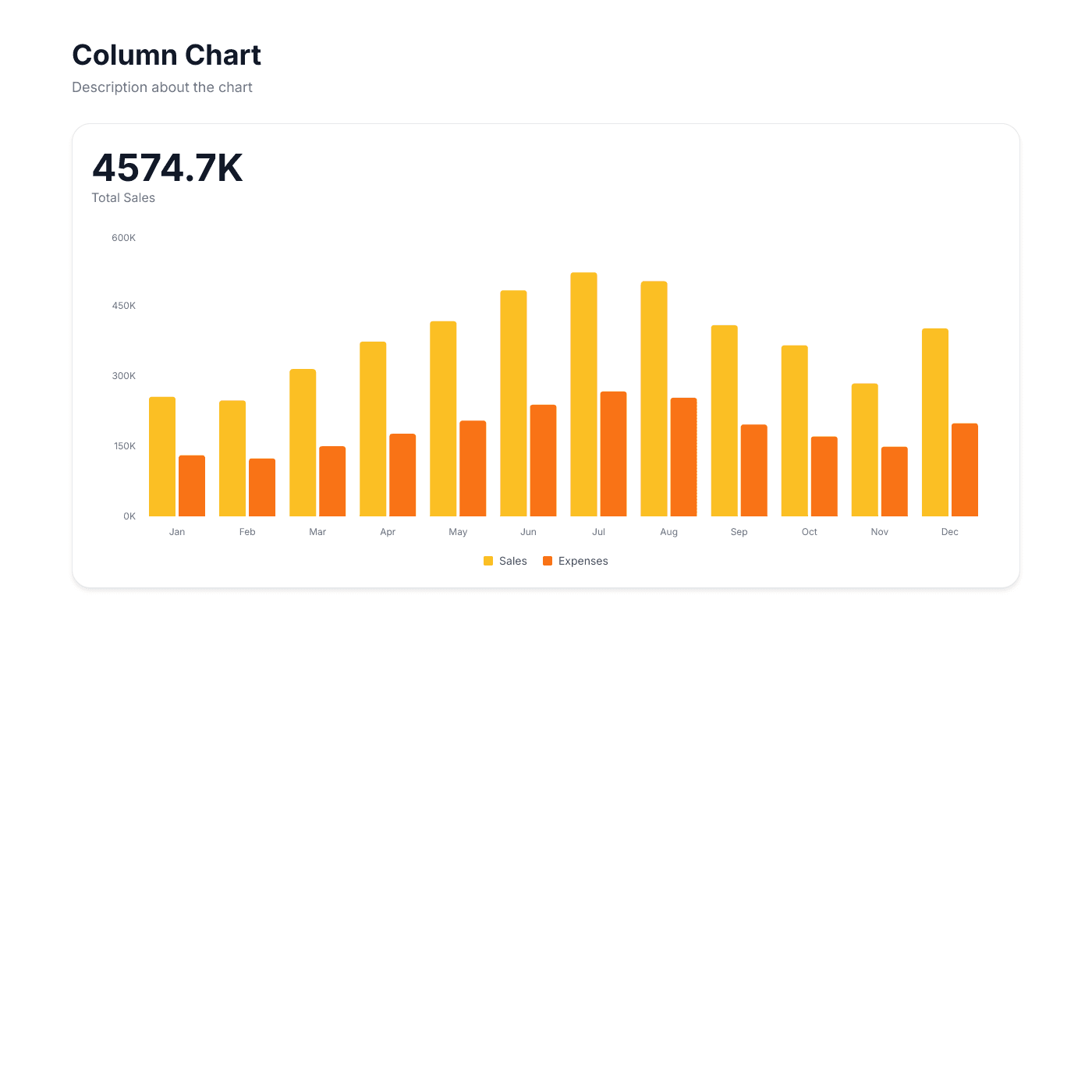
Column Chart
Vertical bars for comparing values across categories. Great for monthly reports and category comparisons.
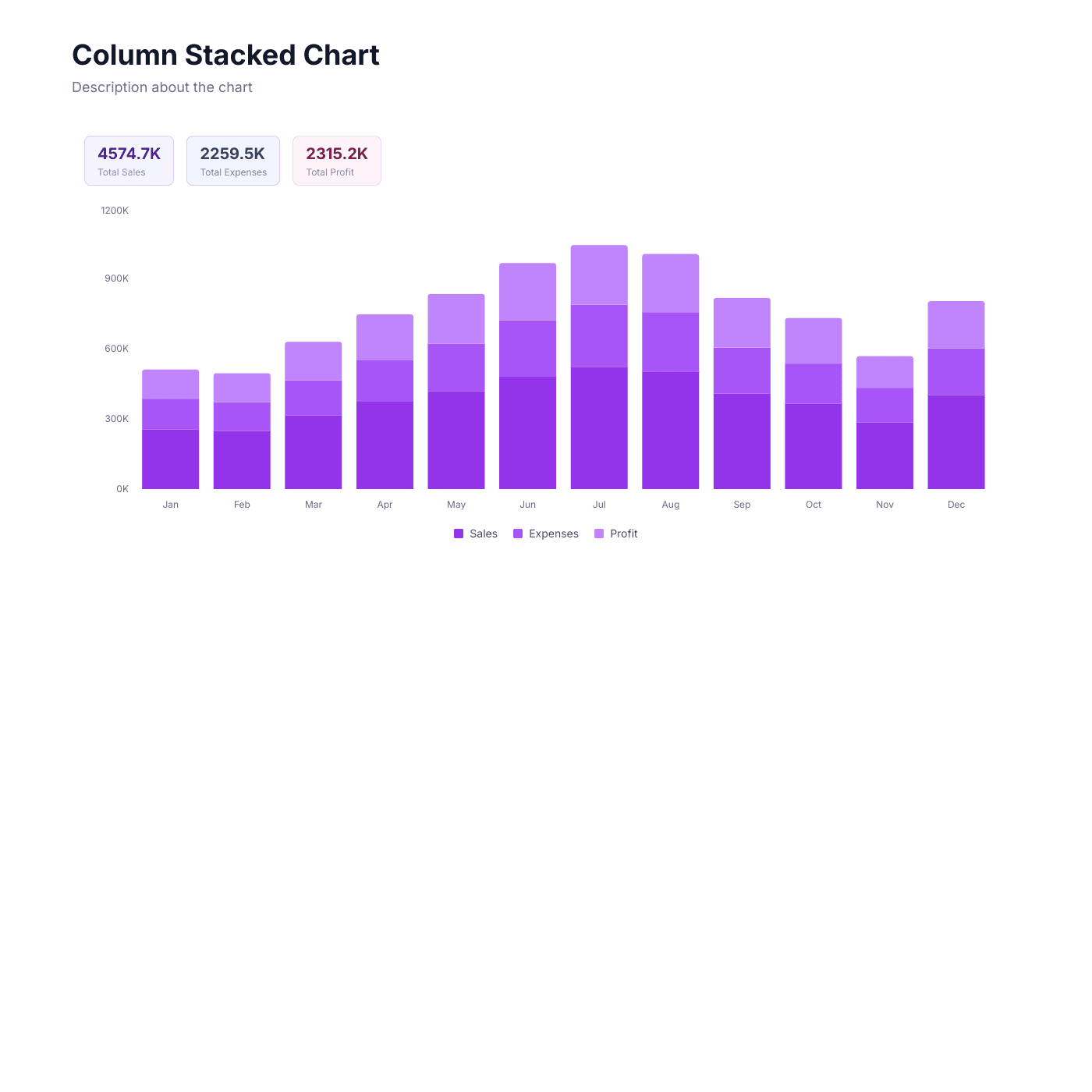
Column Stacked Chart
Stacked vertical bars showing part-to-whole relationships. Ideal for breaking down totals by subcategory.
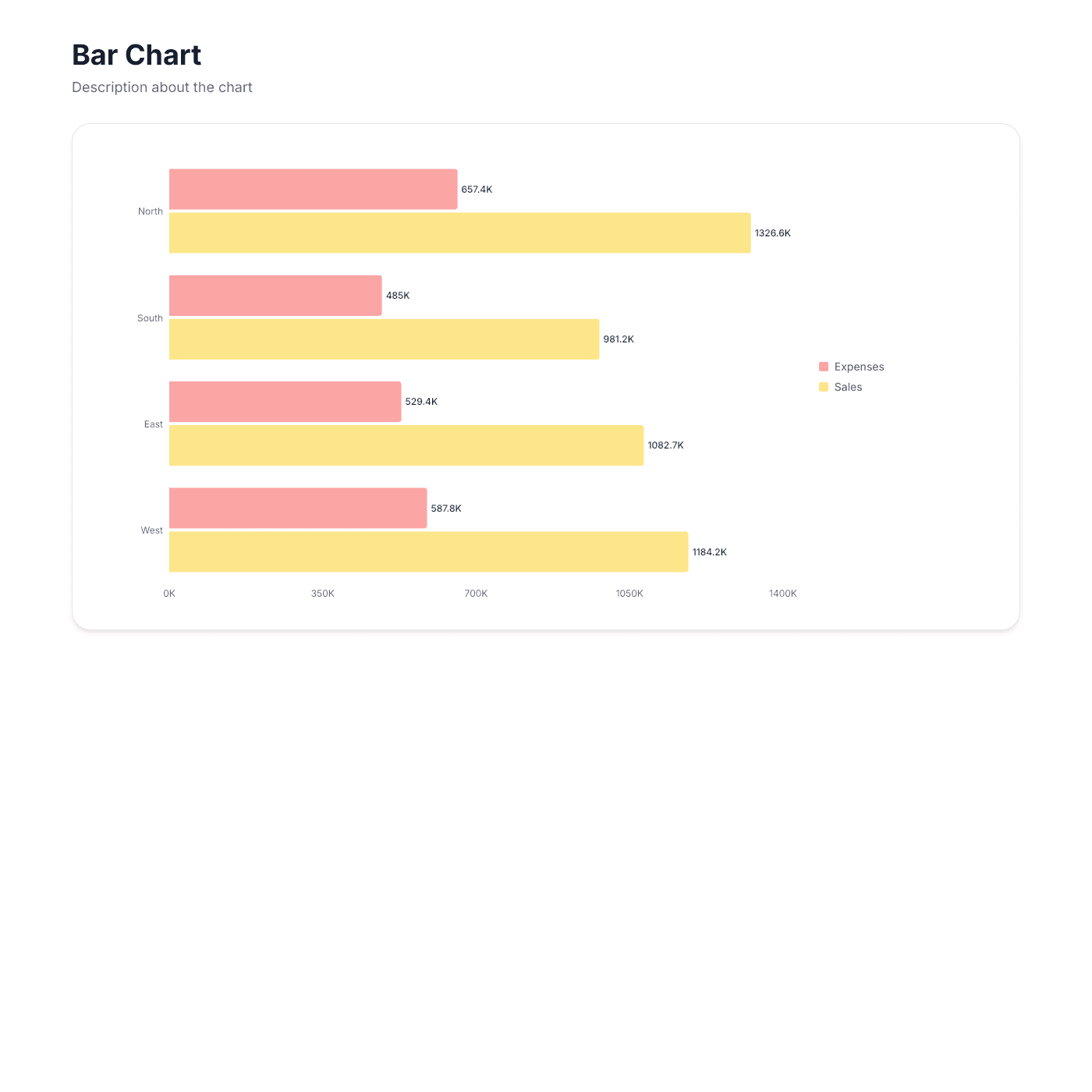
Bar Chart
Horizontal bars for comparing values. Perfect for ranking and leaderboard displays.
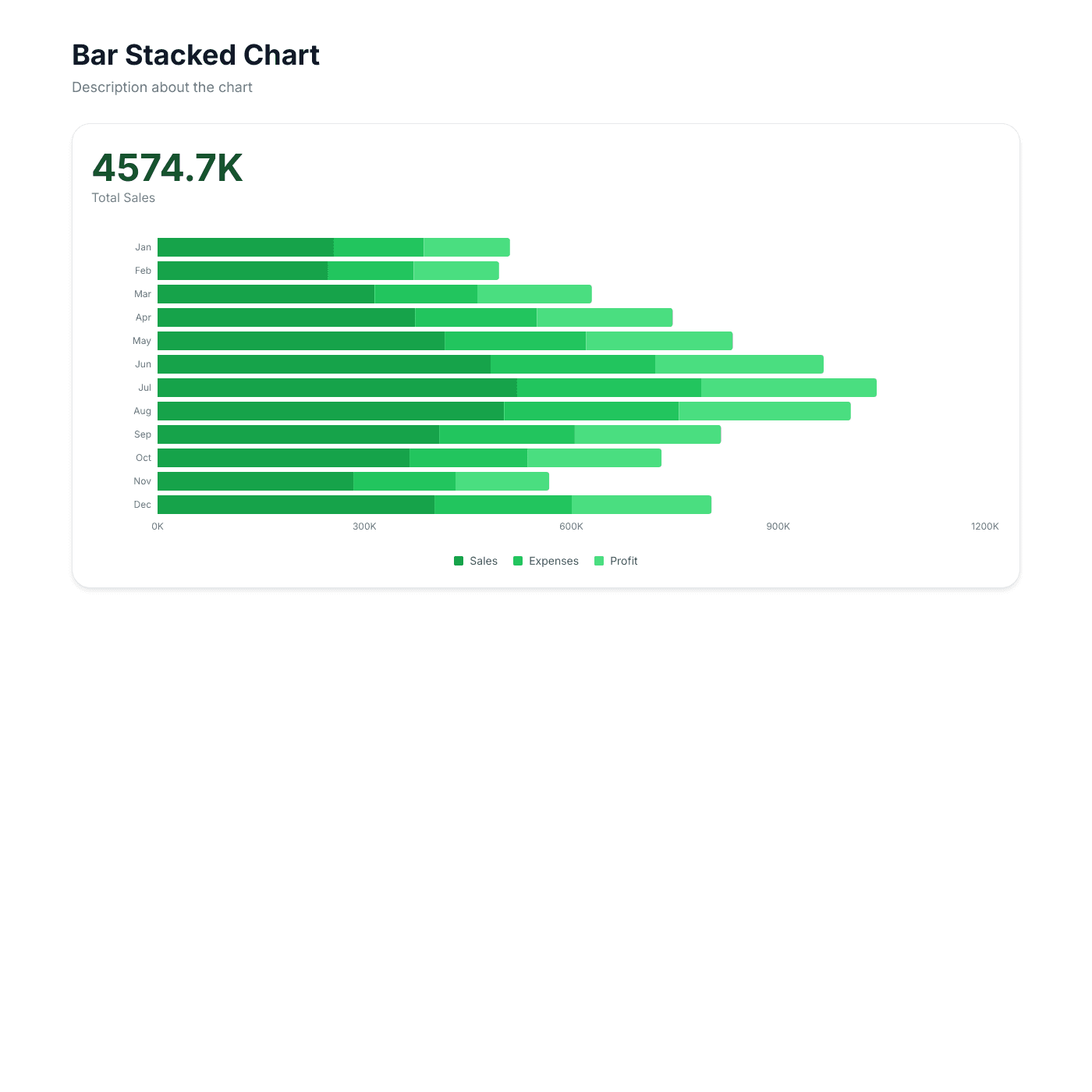
Bar Stacked Chart
Stacked horizontal bars for part-to-whole breakdowns. Great for budget and resource comparisons.
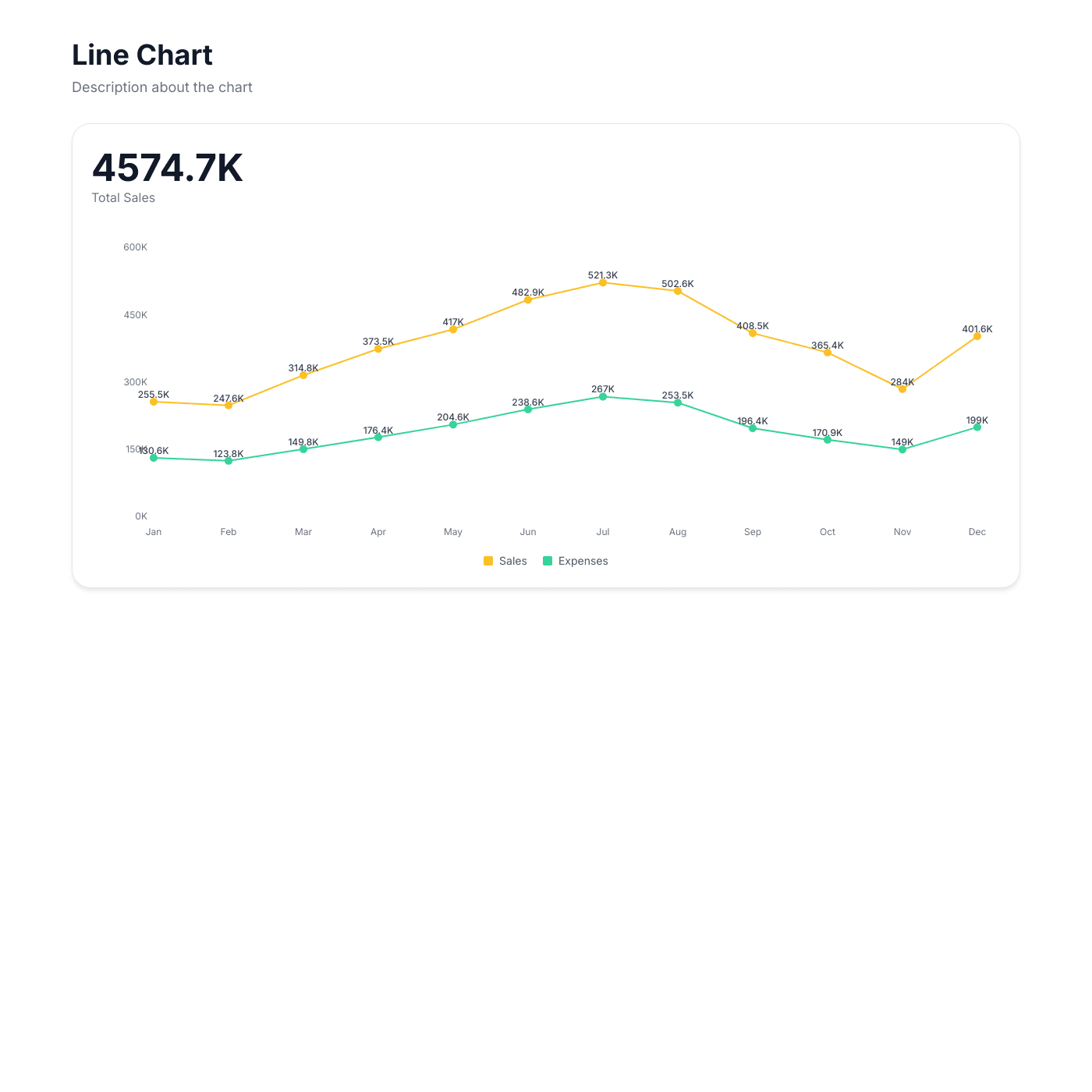
Line Chart
Connected data points showing trends over time. Ideal for tracking growth, revenue, and KPIs.
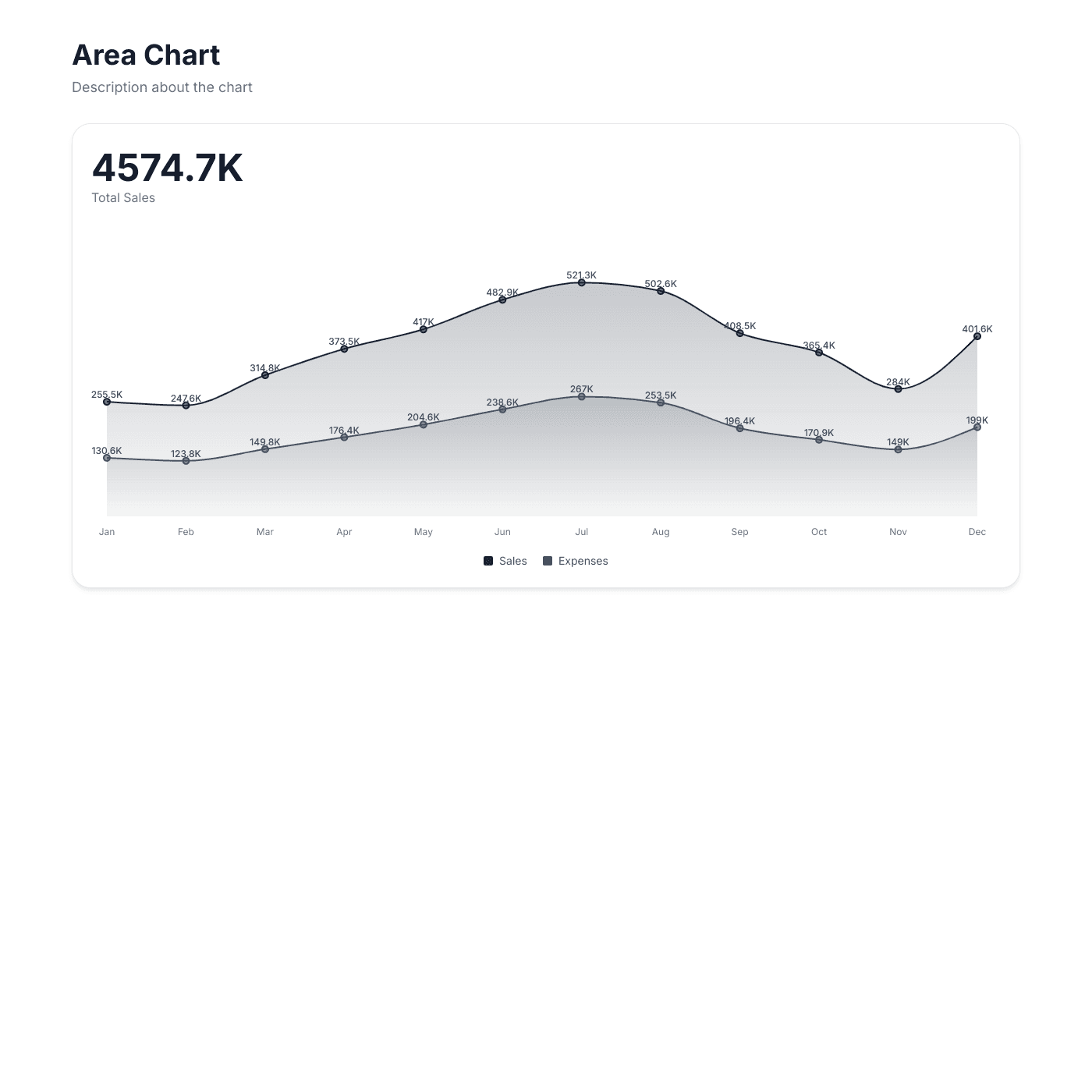
Area Chart
Filled areas showing trends with emphasis on volume. Perfect for cumulative data and comparisons.
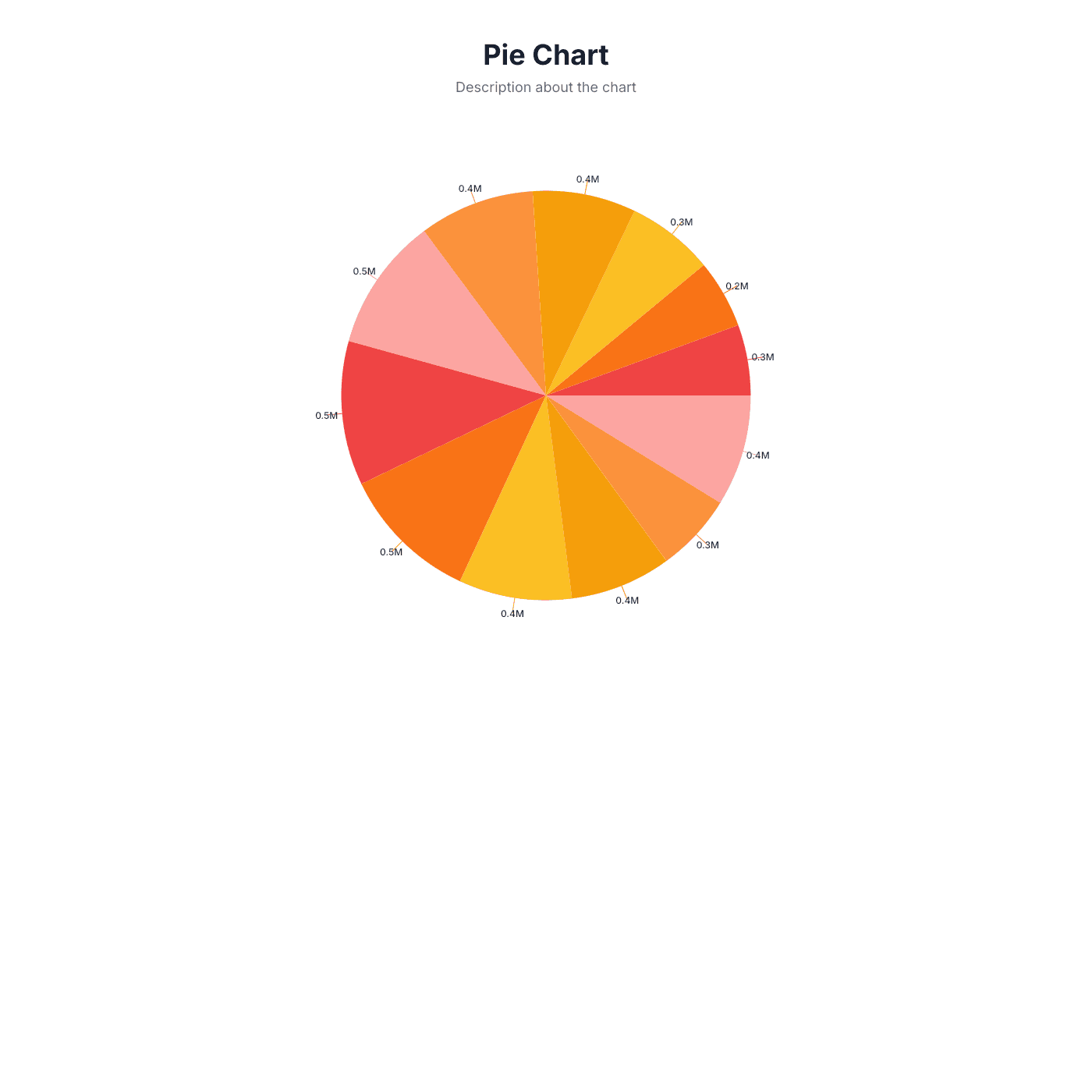
Pie Chart
Proportional distribution across categories. Best for market share, budget allocation, and survey results.
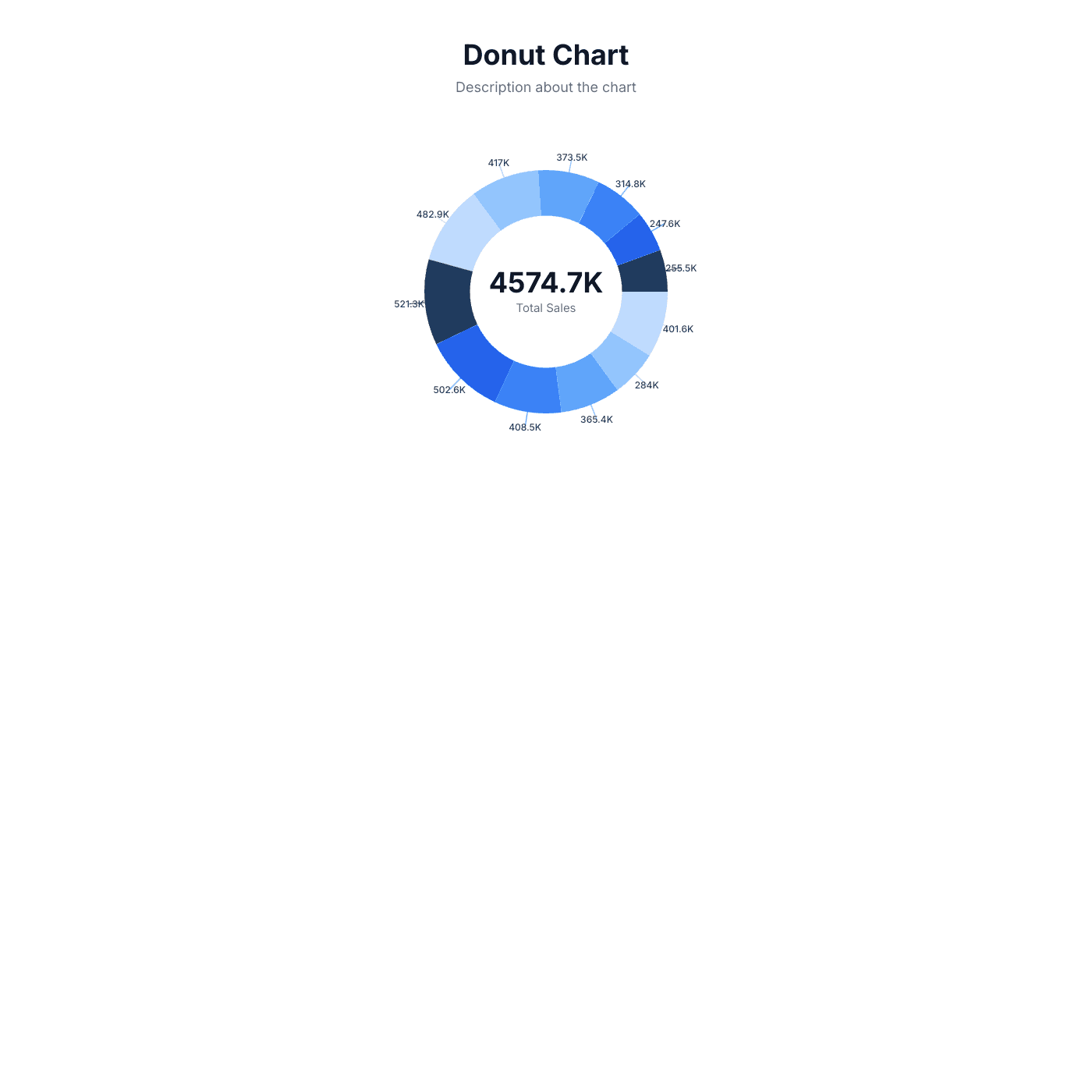
Donut Chart
A ring-shaped alternative to pie charts with space for a centre label.
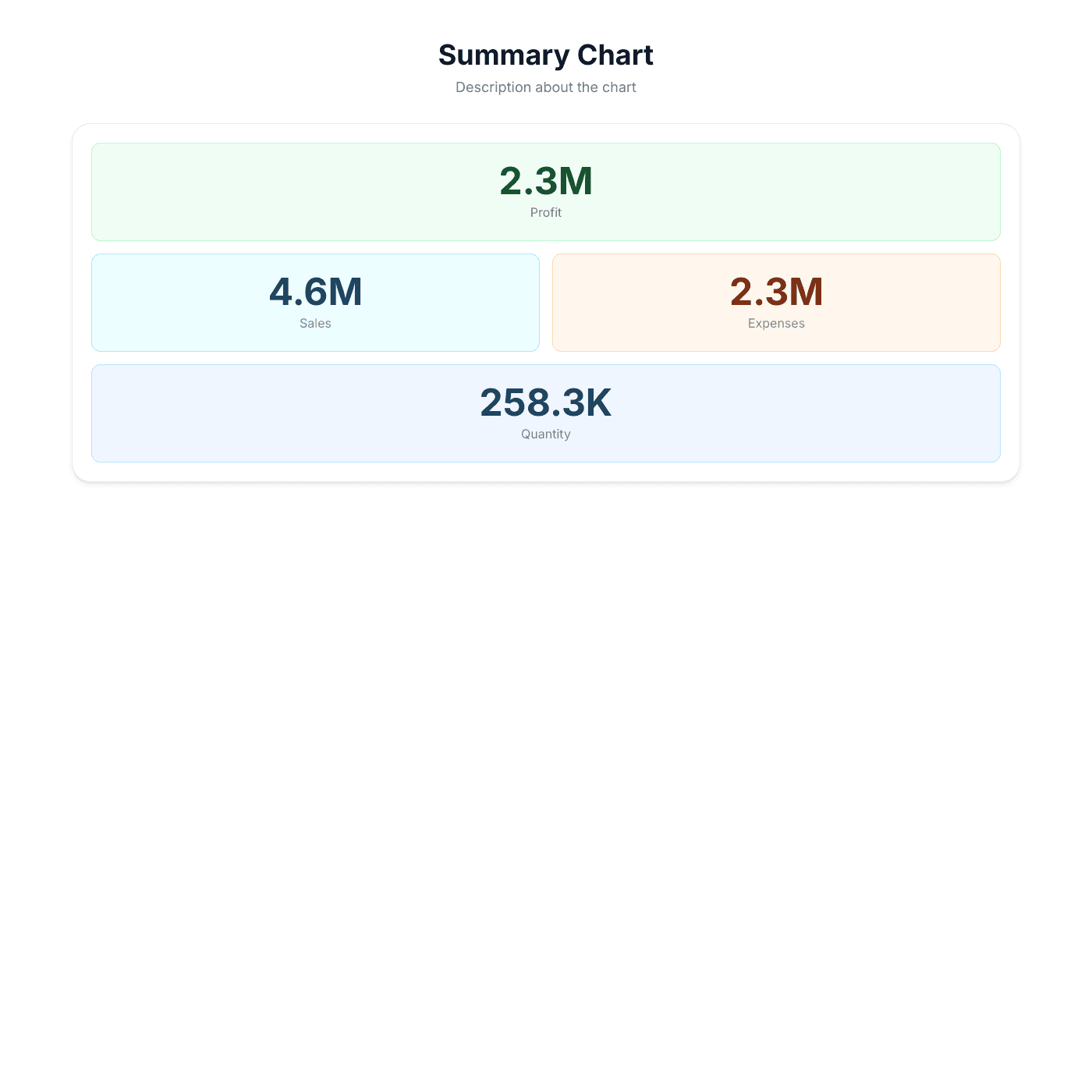
Summary Chart
Key metrics displayed as headline numbers in a grid. Perfect for KPI dashboards and at-a-glance reporting.
Getting Started
- Click New Widget from your dashboard
- Select Chart from the widget picker
- Choose your chart type
- Connect your data source
- Your chart will automatically visualize your data
Each chart type is a separate template. You can preview them all before selecting one.
Configuration
Chart configuration is handled in the Chart tab in the Creator. Map your data columns to the chart axes and customize colours, labels, and formatting.