Buttons
Add clickable buttons and links to your items and details pages.
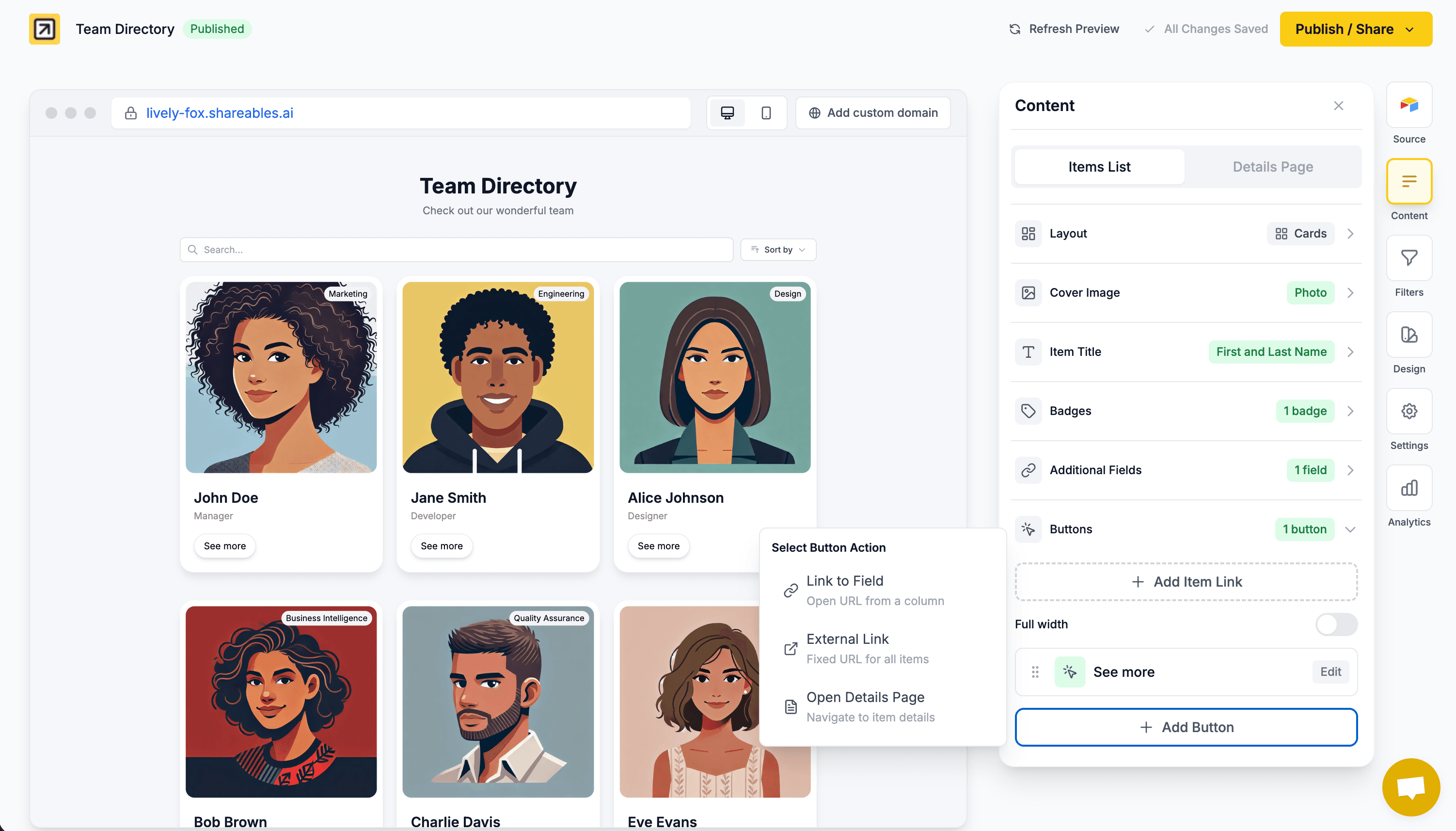
Item Link vs Buttons
There are two ways to add clickable actions to your items:
| Feature | Item Link | Buttons |
|---|---|---|
| What it does | Makes the entire item clickable | Adds individual button elements |
| Appearance | No visible button | Styled buttons with labels |
| Best for | Simple navigation | Multiple actions or prominent CTAs |
Adding an Item Link
Make the entire item clickable so visitors can click anywhere on it to navigate.
Open the Items tab
- Open your widget in the Creator
- Go to the Items tab
- Find the Buttons section
Add an Item Link
- Click Add Item Link
- Choose the link action (see options below)
Configure the link
Select where the link should go and which column contains the URL (if applicable).
Item Link Actions
| Action | Description |
|---|---|
| Open Details Page | Navigate to the item’s details page |
| Link to Field | Open a URL from a column in your data |
| Open File | Open a file from an attachment column (e.g. PDFs, documents) |
| External Link | Open the same fixed URL for all items |
Item links are not available on details pages since visitors have already navigated to the item.
On the Events Calendar widget, the Item Link lives in the Schedule Fields Buttons section and applies to schedule cards. Cards whose link column is empty keep opening the Event Details Modal.
Adding Buttons
Add styled button elements with custom labels.
Open the Items tab
- Open your widget in the Creator
- Go to the Items tab
- Find the Buttons section
Add a Button
- Click Add Button
- Choose the button action
- Enter a label and configure the link
Style the button
Click on the button to open the editor and adjust its appearance.
Button Actions
| Action | Description |
|---|---|
| Link to Field | Open a URL from a column in your data (each item links to its own URL) |
| Open File | Open a file from an attachment column (PDFs, documents, images, etc.) |
| External Link | Open the same fixed URL for all items |
| Open Details Page | Navigate to the item’s details page |
| Compare | Add the item to the compare tray for side-by-side comparison (requires Compare Items to be enabled) |
| Buy Now | Redirect to checkout for the item (requires Payments to be configured) |
| Add to Cart | Add the item to the cart (requires Payments to be configured) |
Button Settings
| Setting | Options |
|---|---|
| Action | Link to Field, Open File, External Link, Open Details Page |
| Field/URL | Select column or enter URL (depends on action) |
| Link opens in | New tab, Same tab |
| Label | Static (same text for all items) or From Source (pull text from a column) |
Dynamic Button Labels
Button text can be static (the same for every item) or pulled from a column in your data source.
When adding or editing a button, use the Label toggle to choose:
| Mode | Description |
|---|---|
| Static | The same text appears on every item’s button |
| From Source | Each item’s button text comes from a column in your spreadsheet |
When using From Source, select the column that contains your button text. If a row has no value in that column, the button will appear with blank text.
Buttons using the Link to Field or Open File action will automatically hide on items where the column is empty. This keeps your widget clean when not every item has a link or file.
Open File
Use the Open File action to let visitors open or download files from an Airtable attachment column (PDFs, documents, spreadsheets, etc.).
- Click Add Button and select Open File
- Enter a label (e.g. “View PDF”, “Download Document”)
- Select the attachment column from your data source
- Choose whether the file opens in a new tab or same tab
If an attachment column contains multiple files, the button will open the first file.
Button Icons
Add an icon next to your button label for a more visual look.
- Click on a button to open the editor
- Click the icon button to the left of the label input
- Browse by category or search for an icon
- Click an icon to select it — it appears to the left of the button label
To remove an icon, hover over the icon button and click the X.
Button Styling
Click on a button to open the styling editor:
| Setting | Options |
|---|---|
| Font size | S, M, L |
| Font weight | Light to Bold |
| Text colour | Custom colour picker |
| Spacing | Top and bottom padding (S, M, L) |
| Button colour | Custom background colour |
| Shape | Pill (fully rounded), Rounded, Square |
| Border | Toggle on/off, colour, width (Light, Normal, Medium, Heavy) |
| Shadow | Toggle on/off, size (Small, Medium, Large, Extra Large) |
Full Width Buttons
For Cards layout, you can toggle Full width to make buttons span the entire width of the card.
Multiple Buttons
You can add multiple buttons to each item. Drag and drop to reorder them.
Adding Buttons to Details Pages
Details pages have their own button settings, allowing you to add different buttons than the item list.
Open the Details tab
- Open your widget in the Creator
- Go to the Details tab
- Make sure the details page is enabled
- Find the Buttons section
Add and configure buttons
Follow the same process as the item list — add buttons, configure actions, and style them.
The “Open Details Page” action is not available for buttons on details pages, since visitors are already viewing the details.
Full Width on Details Pages
Toggle Full width to make buttons span the full width of the content area on details pages.
Tips
- Use descriptive button labels like “View Website” or “Book Now” instead of generic text like “Click Here”
- Use From Source labels when your button text varies per item (e.g. “Buy Now”, “Sold Out”, “Coming Soon”)
- Link to Field buttons automatically hide when the URL column is empty — no need to worry about broken buttons
- Limit to 1-2 buttons per item to avoid clutter
- Use contrasting colours to make buttons stand out
- Consider using Item Link for simple navigation and reserve buttons for important calls-to-action