Customising Widgets
Shareables gives you full control over how your widgets look and feel. This guide introduces the key customisation areas to help you create on-brand embeds.
Customizing widget data
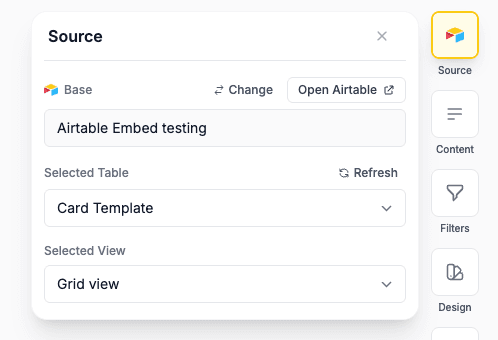
Shareables widgets are powered by your data, you can adjust the data at any time in your data source. To do this:
- Navigate to the Data Source tab (on the right side of the editor)
- Add or remove fields to match your needs.
- Add or remove data, (your data refreshes automatically — see Data Refresh for details)
Customizing widget design
Every widget can be tailored across several areas:
Visible Data fields
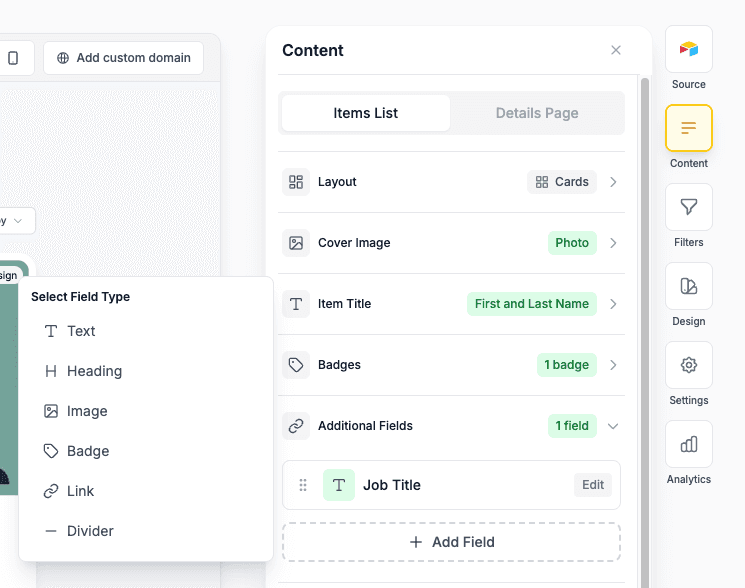
Once your data source is connected you can choose the fields you want to use to populate your template. Your data fields can be used for:
- Titles — Set the main heading displayed on each item
- Cover images — Configure how images display, including aspect ratios and placeholders
- Additional fields — Show data like prices, dates, descriptions, and tags
- Badges — Highlight status, categories, or labels with coloured badges
- Buttons — Add call-to-action buttons that link to URLs or detail pages
- And a lot more!
Visual design
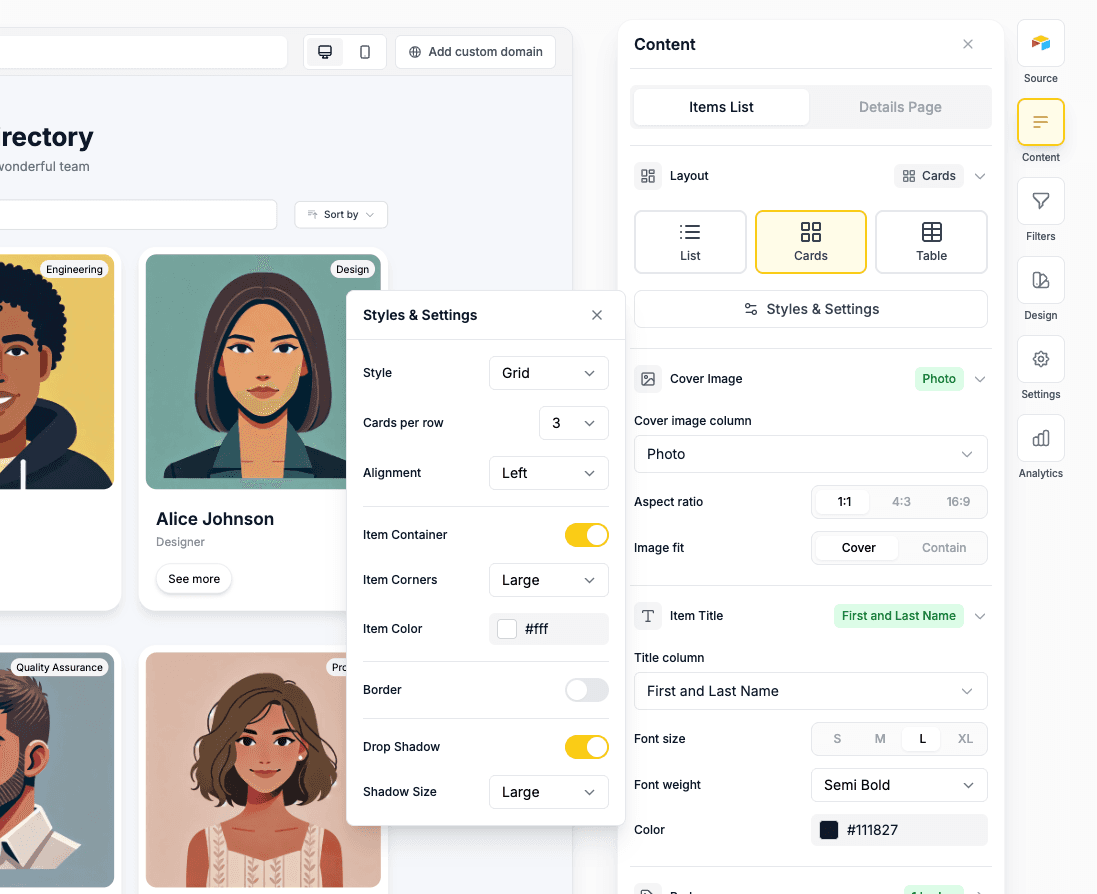
- Layout — Display data as a grid, list, table, or kanban board with adjustable spacing
- Colours — Set your primary colour, background, text, and borders to match your brand
- Typography — Choose from any Google Fonts
- Custom CSS/JS — Add your own CSS or JavaScript for advanced styling
All changes preview in real-time, so you can see exactly how your widget will look before publishing.
Next steps
- Full customisation reference — Complete details on colours, layouts, and custom CSS
- Filters, Search & Sorting — Add interactive controls for your visitors
- Brand Colors — Match your widget’s appearance to your brand
- Embedding your widget — Add your widget to any website
Last updated on