How to track analytics
Monitor how visitors interact with your widgets.
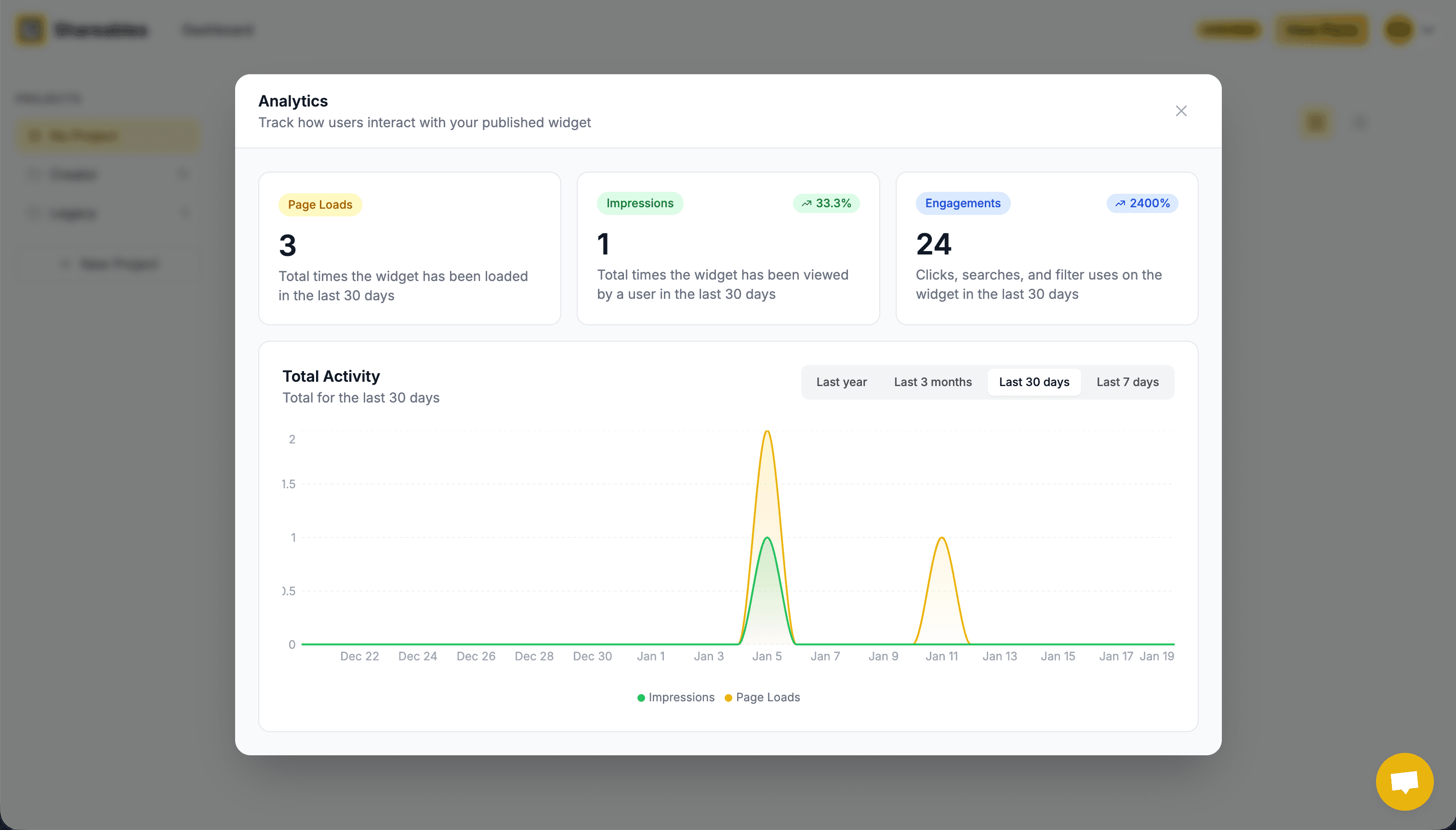
Built-in Analytics
Shareables provides built-in analytics for all published widgets. Analytics tracking is automatic—no setup required. Once your widget is published, data collection begins immediately.
Accessing Analytics
From the Creator
- Open your widget in the Creator
- Click the Analytics button in the right sidebar
- View your metrics and trends
The Analytics button only appears after you’ve published your widget.
Full Analytics Page
For a more detailed view, navigate to the dedicated analytics page from your dashboard. This provides expanded charts and deeper insights into your widget performance.
Metrics Tracked
Primary Metrics
| Metric | Description |
|---|---|
| Unique Visitors | Distinct visitors to your widget in the selected period |
| Page Loads | Number of times your widget was loaded on a page |
| Impressions | When your widget becomes 50% visible in the viewport |
| Engagements | Total user interactions with your widget |
Engagement Events
Engagements are broken down by event type:
| Event | Description |
|---|---|
item_click | User clicks on a list item |
search | User performs a search |
filter | User applies a filter |
sort | User changes the sort order |
show_more | User clicks to load more results (pagination) |
button_click | User clicks a button on an item |
Understanding Your Data
Key Rates
- Impression Rate - Shows how often your widget is actually seen by visitors (not just loaded off-screen).
- Engagement Rate — Shows how often visitors interact with your widget after seeing it.
Dashboard Tabs
The analytics dashboard includes several tabs:
- Total Activity — Area chart displaying daily trends for unique visitors, page loads, and impressions over your selected time range
- Event Breakdown — Table showing which engagement types are most common, plus a breakdown of detail page views by slug
- Sources — Shows which domains/pages are embedding your widget and driving traffic, with view counts and share percentages
- Payments — Revenue summary and recent payment transactions (if payments are enabled)
Hover over charts and metrics to see tooltips explaining what each value means.
Date Range Selection
Use the date picker to control the time period displayed. Click the date picker button to open a popover with:
- Preset ranges — Last 7 days, 30 days, 3 months, or last year
- Custom range — Pick any start and end date using the calendar
The selected date range applies to all metrics, charts, and tabs.
CSV Export
Click the CSV button next to the date picker to download your analytics data as a CSV file. The export includes daily data for all metrics and engagement events — useful for further analysis in spreadsheets or BI tools.
Source Tracking
The Sources tab shows which websites are embedding your widget and driving traffic. When your widget is embedded on another site (via script or iframe), Shareables automatically records the referring domain.
This helps you understand:
- Which pages drive the most traffic to your widget
- Whether embedded widgets are performing well on partner sites
- Where your audience is coming from
Source tracking data begins collecting from the time you deploy this feature. Historical data before the update is not available.