Additional Fields
Display more data from your source by adding additional fields to your items or details pages.
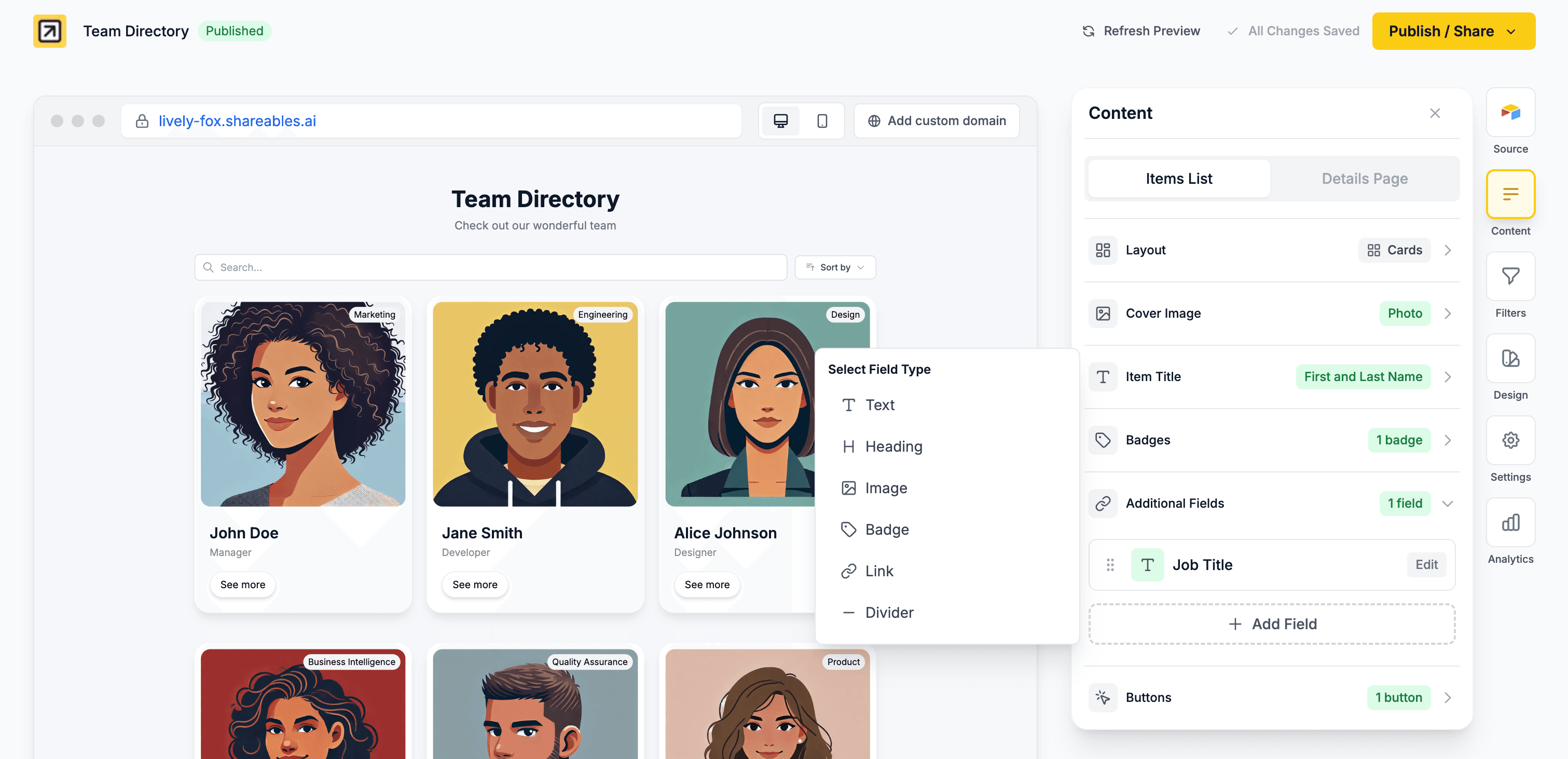
Adding Fields to the Item List
Additional fields appear below the item title on each item in your list.
Open the Items tab
- Open your widget in the Creator
- Go to the Items tab
- Find the Additional Fields section
Add a field
- Click Add Field
- Select a field type — use the search bar to filter. Available types: Text, Date, Email, Link, Badge, Image, Video, File, Number, Rating, Phone, Progress, Checkbox, Button, Heading, Divider, Embed, Code Snippet
- Choose which column from your data source to display — or pick None / Static to enter fixed content yourself (see Static fields)
Style the field
- Click on the field to open the editor
- Adjust styling options (varies by field type)
- Drag fields to reorder them
Field Settings vs Field Styling
When you click on a field, the editor popup has two collapsible sections:
- Field Settings — Behavioural toggles like copy to clipboard, expandable cell (table layout), wrap lines (code), and HTML tag (headings)
- Field Styling — Visual controls like font size, weight, colour, spacing, column width, and alignment
Copy to Clipboard
Available on all field types (except Divider). When enabled, a small copy icon appears on hover, allowing visitors to copy the field value to their clipboard. Toggle it on in Field Settings → Copy to clipboard.
Expandable Cell (Table Layout)
When using the Table layout, content-heavy fields can be expanded. Toggle on Expandable cell in Field Settings to let visitors click to expand truncated content. Available on Text, Heading, Badge, Code Snippet, File, Video, and Embed fields.
Static Fields
Most fields pull their value from a column in your data source. A static field is different — you type the content yourself in the Creator, and the same value shows for every item, detail page, and calendar entry. There’s no column behind it.
This is handy for fixed content like a promotional banner, a disclaimer, a “Powered by” line, a shared video, or any label that’s identical across all items.
Add the field
- Click Add Field and choose a field type (Text, Image, Video, Rating, etc.)
- In the field/column selector, choose None / Static instead of a data column
Enter your content
- A Value input appears. Enter your content — plain text for Text/Heading, a URL for Image/Video/File/Link, a number for Rating/Number/Progress, or on/off for Checkbox
- Style it exactly like any other field
Any field type works. Switching a field to None / Static keeps its type and all of its styling options — only the value source changes from “a column” to “what you type”.
Targeting a static field by URL
Every static field has an id — a short lowercase slug shown beneath the Value input. It’s filled in automatically and you can rename it. The id lets you target the field from the page URL, just like a normal field’s column:
| URL | Effect |
|---|---|
?id=value | Filters items by the field (a static value is the same for every item, so this matches all items or none) |
?hide=id | Hides the field from the widget while keeping it published |
The id must be unique — it can’t match a data column or another static field’s id. If you leave it blank or enter a duplicate, a unique id is set for you automatically.
Field Types
Text
Display text content from your data.
| Setting | Options |
|---|---|
| Max lines | 1–20, or blank for no limit — truncates text with CSS line clamping |
| Font size | S, M, L |
| Font weight | Light to Bold |
| Colour | Custom colour picker |
| Spacing | Top and bottom padding (S, M, L) |
Max lines: When set, long text is visually truncated to the specified number of lines. Markdown formatting is disabled on truncated text to ensure clean line clamping. Not available in email widgets.
Date Formatting
If your text column contains dates, you can apply a date format:
| Format | Example |
|---|---|
| None | Raw value from your data source |
| Short date | 20/02/2026 |
| Date & time | 20 Feb 2026, 3:00 PM |
| US date | 02/20/2026 |
| International | 20/02/2026 |
| ISO | 2026-02-20 |
| Long date | 20 February 2026 |
| Relative | 3 days ago |
Heading
Display larger heading text for emphasis.
| Setting | Options |
|---|---|
| HTML tag | None, H1, H2, H3, H4, H5, H6 (for SEO) |
| Max lines | 1–20, or blank for no limit — truncates text with CSS line clamping |
| Font size | S (24px), M (32px), L (40px) |
| Font weight | Light to Bold |
| Colour | Custom colour picker |
| Spacing | Top and bottom padding (S, M, L) |
SEO tip: Use the HTML Tag setting in Field Settings to set the semantic heading level (H1–H6). This helps search engines understand your content hierarchy without affecting the visual size.
Image
Display images from your data. If the column contains multiple images, they will automatically display as a swipeable carousel with dot indicators.
| Setting | Options |
|---|---|
| Aspect ratio | 1:1, 3:4, 4:3, 4:6, 16:9 |
| Image fit | Cover (fill area), Contain (show full image) |
| Corners | None, Small, Medium, Large, Full |
| Spacing | Top and bottom padding (S, M, L) |
Image carousels: To display multiple images in a carousel, use an Airtable Attachment field with multiple files, a Notion Files & media property with multiple images, or comma-separated image URLs in a Google Sheets cell. Single images display normally without carousel controls.
Using Google Sheets? Watch this quick guide on how to add images to Google Sheets for use in your widget.
YouTube Video
Embed a video from a URL in your data. Supports YouTube, Vimeo, and direct video file URLs (.mp4, .webm, .ogg, .mov). Items without a valid video URL will show nothing.
| Setting | Options |
|---|---|
| Aspect ratio | 1:1, 4:3, 16:9 |
| Corners | None, Small, Medium, Large, Full |
| Spacing | Top and bottom padding (S, M, L) |
Badge
Display tags or categories as styled labels.
| Setting | Options |
|---|---|
| Font size | S, M, L |
| Font weight | Light to Bold |
| Text colour | Custom colour picker |
| Background colour | Custom colour picker |
| Shape | Pill (fully rounded), Rounded (rounded corners) |
| Spacing | Top and bottom padding (S, M, L) |
Link
Display clickable links from your data.
| Setting | Options |
|---|---|
| Font size | S, M, L |
| Font weight | Light to Bold |
| Colour | Custom colour picker |
| Spacing | Top and bottom padding (S, M, L) |
File
Display a clickable file link from an attachment column. Useful for linking to PDFs, documents, spreadsheets, or any other files stored in your data source.
| Setting | Options |
|---|---|
| Link text | Static (same text for all items, e.g. “View Document”) or From Source (pull text from a column) |
| Opens in | New tab, Same tab |
| Font size | S, M, L |
| Font weight | Light to Bold |
| Colour | Custom colour picker |
| Spacing | Top and bottom padding (S, M, L) |
Attachment columns: Select a column that contains file attachments (e.g. Airtable Attachment fields). If the column contains multiple files, the link will point to the first file. Items without attachments will show nothing.
Code Snippet
Display code with syntax highlighting, preserved indentation, and an optional copy-to-clipboard button. Ideal for documentation sites, developer portfolios, or any widget that needs to show formatted code.
| Setting | Options |
|---|---|
| Language | Plain Text, JavaScript, TypeScript, Python, HTML, CSS, JSON, SQL, Bash, Ruby, Go, Rust, Java, C, C++, PHP, Swift, Kotlin, YAML, XML, Markdown |
| Copy to clipboard | On (default) or Off — shows a copy button on hover |
| Wrap lines | Off (default, horizontal scroll) or On (wrap long lines) |
| Font size | S, M, L |
| Spacing | Top and bottom padding (S, M, L) |
Whitespace is preserved: Code snippets maintain all indentation, tabs, and line breaks exactly as they appear in your data source. The code renders in a monospace font on a light gray background with syntax highlighting based on the selected language.
Divider
Add a visual separator line between content. Dividers don’t require a data column.
| Setting | Options |
|---|---|
| Thickness | Light to Bold |
| Colour | Custom colour picker |
| Spacing | Top and bottom padding (S, M, L) |
Embed
Render raw HTML, iframes, or third-party widget code directly from your data source. This is useful for embedding audio players, video widgets, interactive maps, or any other embeddable content on a per-item basis.
To use it, paste the embed code (HTML, <iframe>, or <script> tags) into a cell in your data source, then map an Embed field to that column.
Embed fields support labels — add a label like “Image source” or “Credit” to display a heading above or beside the embedded content.
Script execution: Embed fields support <script> tags — external scripts will load and execute automatically. This means third-party widgets like Elfsight, Typeform, Calendly, and others will work as expected.
Security note: Embed fields render raw HTML from your data source without sanitisation. Only use this field type with data you trust. The embedded code runs in the context of your published widget page and does not affect the Shareables Creator or other widgets.
Date
Display formatted dates from your data. Use this instead of the Text field type when your column contains dates — it gives you a dedicated format selector.
| Setting | Options |
|---|---|
| Format | None (raw), Short date, Long date, International, Date & time, US date, ISO, Relative |
| Font size | S, M, L |
| Font weight | Light to Bold |
| Colour | Custom colour picker |
Number
Display formatted numbers with locale separators, abbreviation, and optional prefix/suffix.
| Setting | Options |
|---|---|
| Decimals | Auto, 0, 1, 2, 3, 4 |
| Abbreviate | None, Auto, Thousands (K), Millions (M), Billions (B) |
| Prefix | Any text (e.g. $, €, £) |
| Suffix | Any text (e.g. /mo, %, units) |
| Font size | S, M, L |
| Font weight | Light to Bold |
| Colour | Custom colour picker |
Rating
Display a visual star rating (or custom icon) based on a numeric value in your data.
| Setting | Options |
|---|---|
| Scale | 1–10 (default 5) — the maximum rating value |
| Size | S, M, L |
| Colour | Custom colour picker (fill colour for the icons) |
| Icon | Default star, or pick any icon from the icon library |
How it works: The value in your data column is treated as a number. For example, if Scale is 5 and the value is 3, three filled stars and two unfilled stars are displayed. Unfilled icons use the same colour at reduced opacity.
Phone
Display a clickable phone number link (tel: link). Visitors can tap to call on mobile devices.
| Setting | Options |
|---|---|
| Display | Phone number (raw value), Static text, or From column |
| Font size | S, M, L |
| Font weight | Light to Bold |
| Colour | Custom colour picker |
Display a clickable email address link (mailto: link). Visitors can click to open their email client.
| Setting | Options |
|---|---|
| Display | Email address (raw value), Static text, or From column |
| Font size | S, M, L |
| Font weight | Light to Bold |
| Colour | Custom colour picker |
Progress
Display a progress bar or ring based on a numeric value in your data.
| Setting | Options |
|---|---|
| Style | Bar or Ring |
| Max value | The value that represents 100% completion (default 100) |
| Display | Percentage or None |
| Fill colour | Custom colour picker |
| Track colour | Custom colour picker (the background track) |
How it works: The value in your data column is divided by the Max value to calculate the percentage. For example, if Max is 100 and the value is 75, the bar fills to 75%.
Checkbox
Display a visual checkbox icon based on boolean-like values in your data.
| Recognised values | Result |
|---|---|
true, yes, on, 1, checked | ✅ Checked (green) |
false, no, off, 0, unchecked, empty | ⬜ Unchecked (gray) |
| Setting | Options |
|---|---|
| Font size | S, M, L |
| Font weight | Light to Bold |
| Colour | Custom colour picker |
Field Labels
Most field types support an optional Label that displays above or beside the field value.
| Setting | Options |
|---|---|
| Label text | Any text, or leave blank to hide |
| Icon | Optional icon displayed to the left of the label |
| Label position | Top (above the value), Side-by-side (next to the value), or Accordion (collapsible — click label to expand/collapse) |
| Label styling | Font size, weight, and colour |
To add an icon, click the icon button to the left of the label input, then browse or search for an icon.
Labels are useful for adding context to your fields — for example, “Price,” “Location,” “Image source,” or any other descriptor.
Accordion position: When set to Accordion, the label becomes a clickable toggle with a chevron arrow. The field value starts collapsed and expands when visitors click the label. This is great for FAQs, long descriptions, or any content you want to keep tidy by default.
Managing Fields
Reordering
Drag and drop fields to change their display order.
Removing
Click on a field, then click the delete button to remove it.
Adding Fields to Details Pages
Details pages have their own separate set of additional fields, allowing you to show different or more detailed information than the item list.
Open the Details tab
- Open your widget in the Creator
- Go to the Details tab
- Make sure the details page is enabled
- Find the Fields section
Add and configure fields
Follow the same process as the item list — add fields, select columns, and style them.
Details pages typically show more fields than the item list, since visitors have clicked through to see the full information about a specific record.
Tips
- Use Headings to create sections within your item or details page
- Use Dividers to visually separate groups of content
- Keep the item list fields minimal — save detailed information for the details page
- Match badge colours to your brand or use them to indicate status/categories