Widget Header
Add a header to your widget with a title, subtitle, logo, background, buttons, and more.
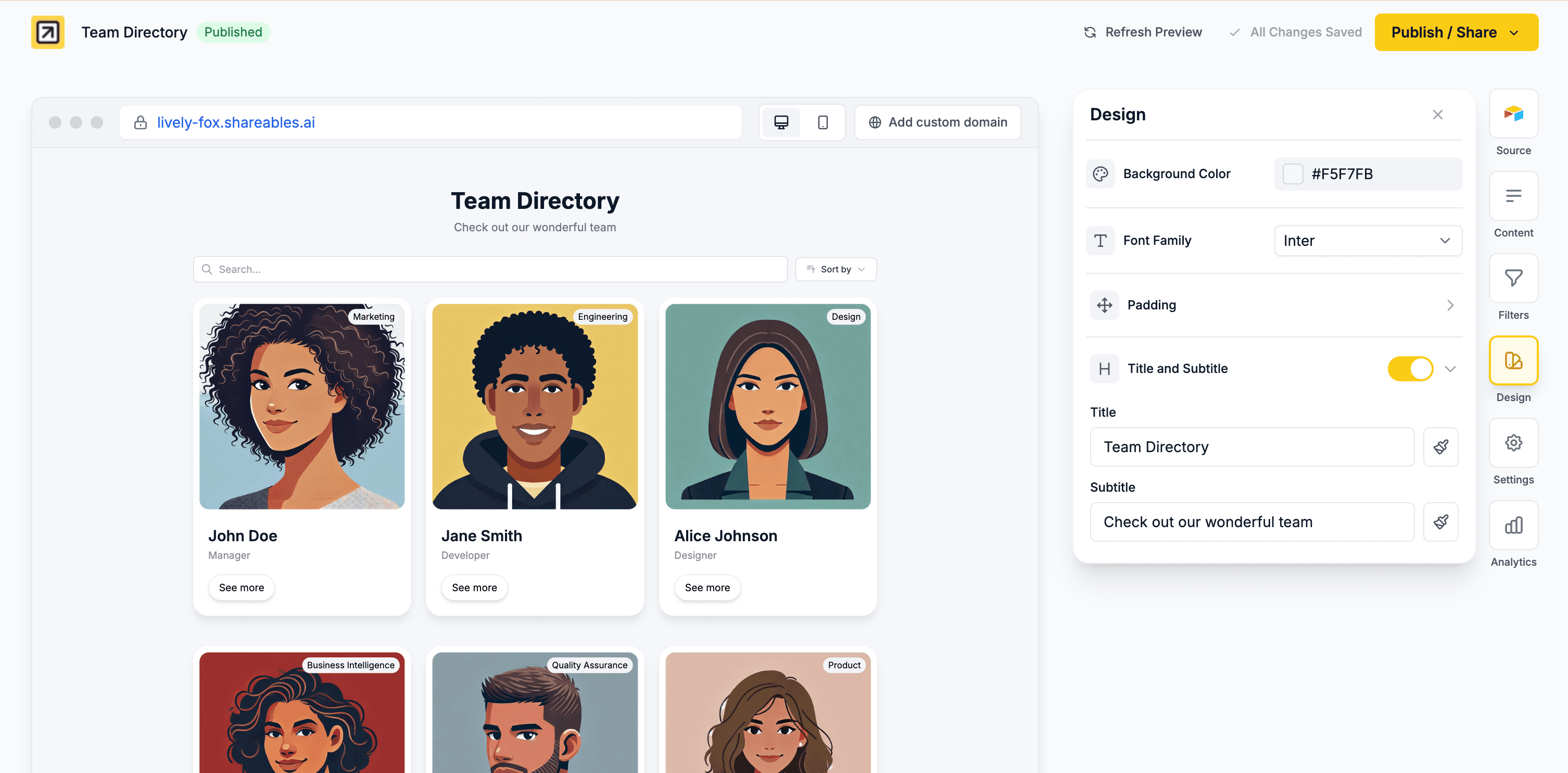
Enabling the Header
Open the Design tab
- Open your widget in the Creator
- Go to the Design tab
Enable the Header
- Find the Header section
- Toggle it on to enable
Enter your text
- Type your Title text (e.g., “Our Team”, “Product Catalogue”)
- Optionally type a Subtitle (e.g., “Meet the people behind the product”)
Title and Subtitle Styles
Both the title and subtitle have their own styling options. Click the paintbrush icon next to each field to open the styles popup.
| Setting | Options |
|---|---|
| Colour | Custom colour picker |
| Size | Small, Medium, Large |
Alignment
A single alignment control sets the alignment for the title, subtitle, logo, and buttons together.
| Option | Description |
|---|---|
| Left | Align all header content to the left |
| Centre | Centre all header content |
| Right | Align all header content to the right |
Logo
Upload a logo image to display in your header alongside the title and subtitle.
Upload a logo
- In the Header section, find the Logo row
- Click Upload and select an image
Adjust logo settings
Once uploaded, a thumbnail of your logo will appear. Click the paintbrush icon to open the logo settings popup:
| Setting | Description |
|---|---|
| Max Height | Control the logo size (in pixels) |
| Change | Replace the current logo with a new image |
| Delete | Remove the logo entirely |
Background
Choose a background style for your header. Select from the Background dropdown:
None
No background — the header uses the default page background.
Colour
Apply a solid background colour using the colour picker that appears below the dropdown.
Gradient
Apply a gradient background. Click the gradient swatch to open the gradient editor:
| Setting | Description |
|---|---|
| Presets | Choose from pre-made gradient styles |
| Start Colour | Pick the starting colour of the gradient |
| End Colour | Pick the ending colour of the gradient |
| Direction | Set the gradient angle (e.g., top to bottom, diagonal) |
Image
Upload a background image. Once uploaded, click the paintbrush icon to adjust:
| Setting | Options |
|---|---|
| Fit | Cover (fill the entire header area) or Contain (show the full image) |
| Position | Top, Centre, or Bottom alignment |
| Change | Replace the current background image |
| Remove | Remove the background image |
When using Cover, the image will crop to fill the header. When using Contain, the full image is shown without cropping or repeating.
Padding
Control the vertical spacing of your header with the Top Padding and Bottom Padding fields. Enter a value in pixels to adjust the space above and below the header content.
Header Buttons
Add buttons to your header for calls-to-action like “Contact Us” or “Get Started”.
Add a button
- In the Header section, click Add Button
- Enter a label and a URL
Style the button
Click on the button to open the editor and adjust its appearance. Header buttons support the same styling options as item buttons — see Buttons for full details.
Reorder buttons
Drag and drop buttons to change their order.
Header buttons always link to an external URL. Actions like “Open Details Page” and “Link to Field” are not available for header buttons.
Tips
- Keep titles short and descriptive
- Use the subtitle to add helpful context or instructions
- Match colours and backgrounds to your brand or website design
- Use a gradient or background image to make your header stand out
- Adjust padding to give your header more or less breathing room
- Limit header buttons to 1-2 to keep the header clean
- The header appears on both the item list and details pages