Layouts
Choose how your records are displayed with different layout options for both item lists and details pages.
Item List Layouts
Configure how records appear in your main browsable view.
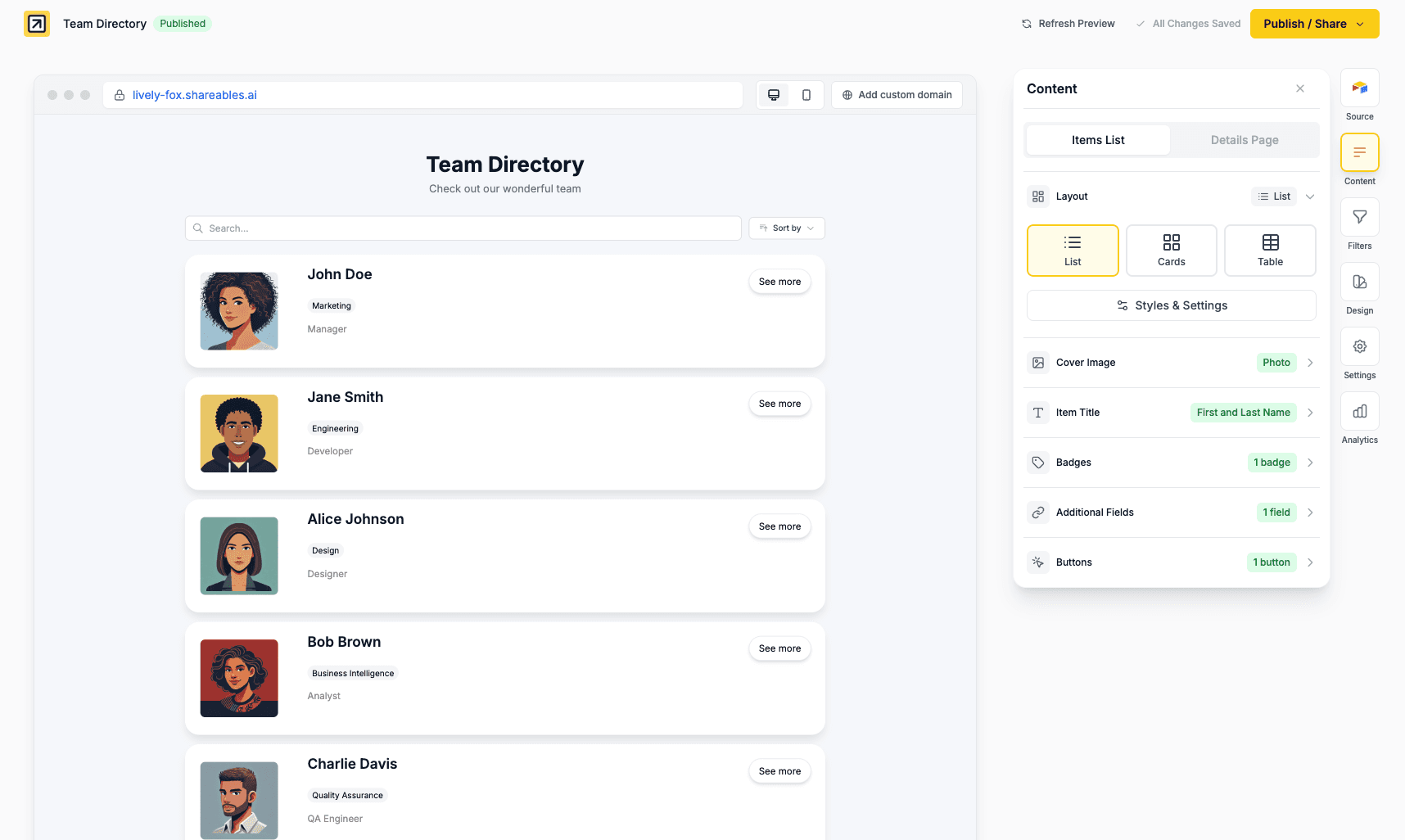
List
Display records in a vertical list format.
Best for:
- Job boards
- Event listings
- News articles
- Simple directories
Style options:
- Stacked - Traditional vertical list
- Columns - Two-column layout
- Accordion - Expandable/collapsible items
Buttons vertical align: by default an item’s buttons sit in its title row (Top). Open Styles & Settings, expand Buttons and pick Middle to centre them on the item or Bottom to line them up with its bottom edge. This only affects desktop widths; on narrower screens the buttons always move below the content. Not available for the Accordion style.
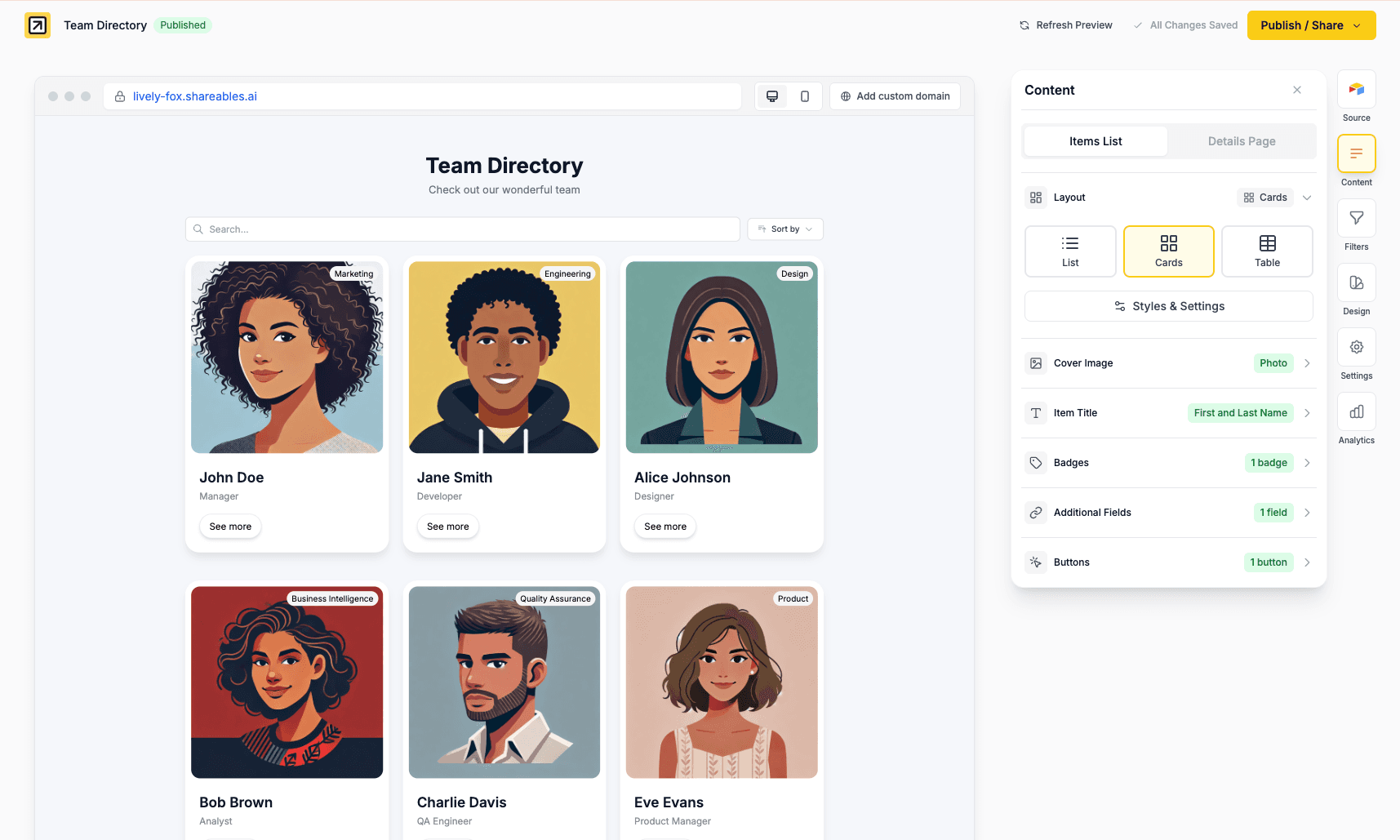
Cards
Display records in a responsive grid of cards.
Best for:
- Product catalogues
- Team directories
- Image galleries
- Portfolio items
Style options:
- Grid - Equal-height cards in rows
- Masonry - Pinterest-style variable-height layout
- Horizontal - Masonry layout with horizontal card items (image on left, content on right — matching the list layout appearance)
Cards settings:
| Setting | Options |
|---|---|
| Cards per row | 1, 2, 3, 4, 5, or 6 |
| Alignment | Left, Centre, or Right (Grid only) |
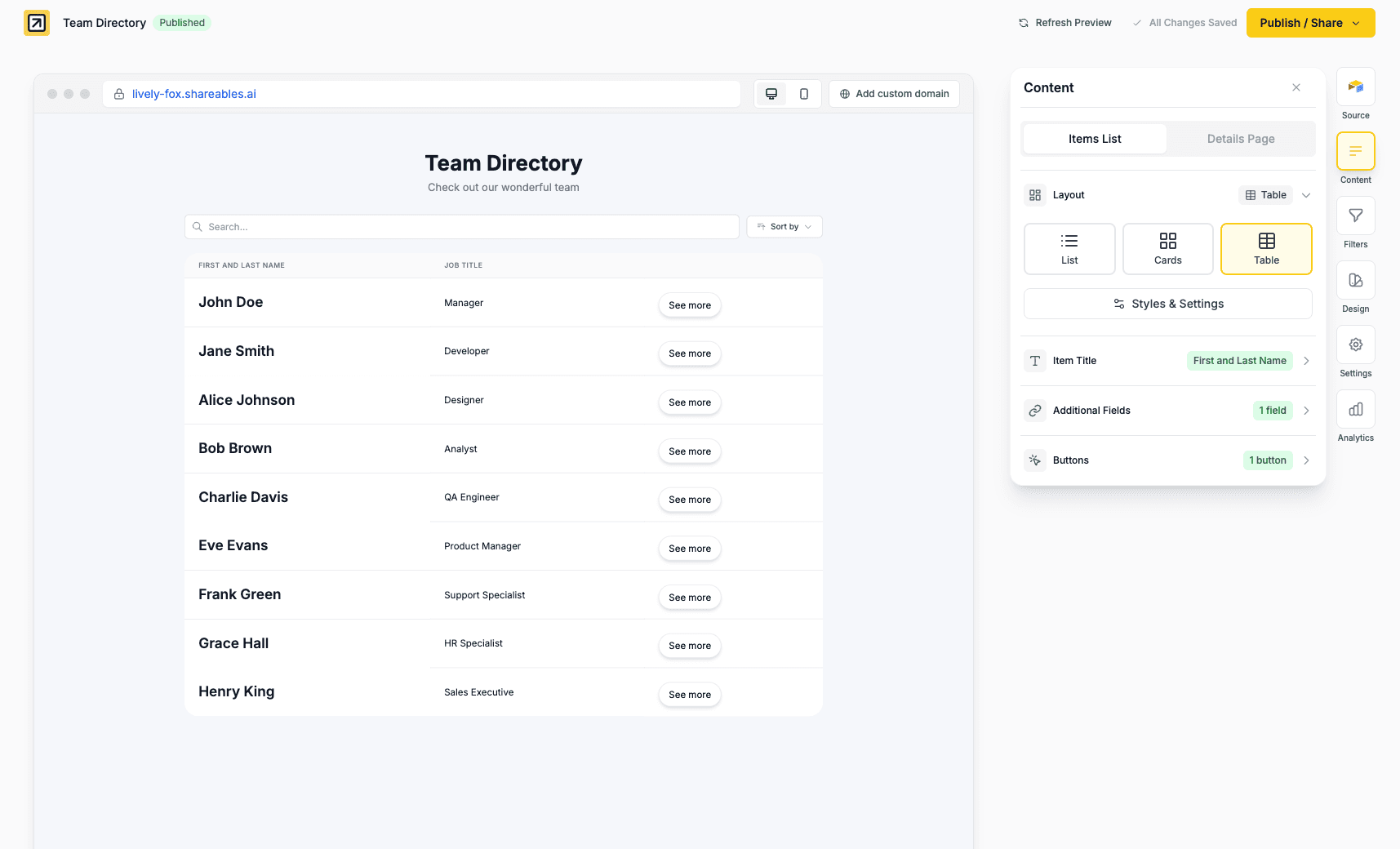
Table
Display records in rows and columns like a spreadsheet.
Best for:
- Data-heavy content
- Comparison views
- Pricing tables
- Inventory lists
Table settings:
| Setting | Options |
|---|---|
| Vertical align | Top (default), Middle, Bottom |
| Group by | Any column from your data source |
| Order | A→Z, Z→A, or Source order (when grouping) |
| Sortable headers | Toggle on to let visitors sort by clicking column headers |
Vertical Alignment
Control the vertical alignment of content inside table cells. This is useful when rows have mixed content heights — for example, a row with a tall image alongside short text fields. Set to Middle to vertically centre content, or Bottom to align to the bottom of each cell.
Row Grouping
Group your table rows by any column to organise data into collapsible sections. When a Group by column is selected, rows with the same value are grouped together under a header showing the group name and item count.
- Click the group header to collapse or expand that group
- Use the Order setting to sort groups alphabetically (A→Z or Z→A) or keep the original source order
- Turn on Start collapsed to have every group load collapsed by default — visitors can then expand the ones they want
- Group headers inherit your table header’s background and text colours
Row grouping works great for organising data like categories, statuses, departments, or any column with repeated values.
You can also control whether groups start collapsed or expanded per-link using a groups URL parameter, which overrides the Start collapsed setting:
?groups=collapsed
?groups=expanded
This sets the initial state when the widget loads — visitors can still toggle individual groups afterwards. It works alongside filters, search, and sorting, e.g. ?groups=expanded&Status=Active. See URL Parameters for the full list.
Sortable Headers
Enable Sortable headers to let visitors sort your table by clicking any column header. When enabled:
- Click a column header to sort ascending (A→Z, 1→9, oldest→newest)
- Click again to sort descending (Z→A, 9→1, newest→oldest)
- A small arrow indicator shows the current sort direction
- Sorting applies to the entire dataset, not just the visible rows — pagination resets to page 1 when sorting changes
Sortable headers work independently from the Sort dropdown in the Filters tab. You can use either or both — they share the same sort state, so changing one updates the other.
Table header settings (via Styles & Settings):
| Setting | Options |
|---|---|
| Background colour | Custom colour picker |
| Text colour | Custom colour picker |
| Font size | Small, Medium, Large |
| Font weight | Normal, Medium, Semi Bold, Bold |
| Text style | UPPERCASE, Capitalize, Normal |
Column Width
You can customise the width of individual columns in the table layout. Click on any field (including the item title) to open its settings, then adjust the Column Width dropdown.
| Width | Best for |
|---|---|
| 80px | Narrow columns (icons, short status values) |
| 100–120px | Short text, dates, numbers |
| 150–180px | Standard text columns (180px is the default) |
| 200–250px | Longer text, descriptions |
| 300–400px | Full descriptions, embed content |
The column width setting only appears when your widget is using the Table layout. It sets a minimum width — columns can grow wider if the table has extra space, but won’t shrink below the specified size.
Expandable Cells
For content-heavy fields (Text, Heading, Badge, Code Snippet, File, Video, Embed), you can enable Expandable cell in the field’s settings. When enabled, long content is truncated to a compact height with a small expand button — visitors can click it to reveal the full content.
This is especially useful for Code Snippet fields in tables, which render with full syntax highlighting and can contain many lines of code.
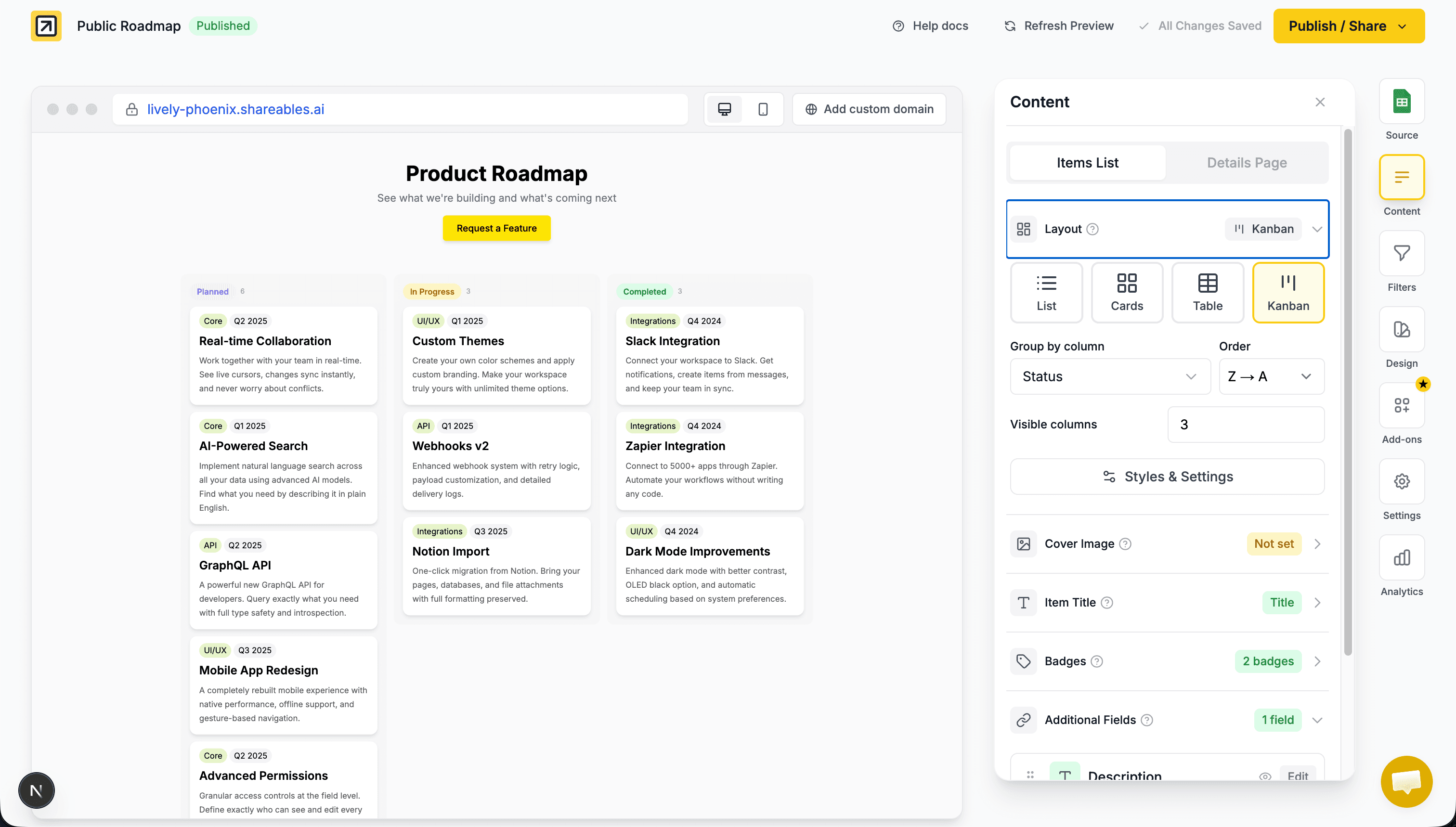
Kanban
Display records grouped into columns by a category field, similar to a Trello or project management board.
Best for:
- Product roadmaps
- Project tracking
- Status workflows
- Pipeline management
How it works:
Records are automatically grouped into columns based on the values in your selected Group By column. For example, if you group by a “Status” field with values like “Planned”, “In Progress”, and “Completed”, each status becomes its own column.
Kanban settings:
| Setting | Options |
|---|---|
| Group by column | Any column from your data source |
| Column order | Ascending, Descending, or Source order |
| Visible columns | 1 to 6 columns visible at once |
| Items per column | Number of items shown before “Show more” |
Column Header Styling
Customise the appearance of kanban column headers via Styles & Settings:
| Setting | Options |
|---|---|
| Show count | Display number of items per column |
| Colour mode | Single, Source, or Multi |
| Column container | Enable a background container around each column |
Colour modes explained:
- Single - One background and text colour for all column headers
- Source - Automatically uses colours from your data source’s field options (works with Airtable and Notion select/multi-select fields)
- Multi - Define your own set of colours that cycle across columns in order
Source colours work best with select or multi-select fields from Airtable or Notion that have colour options configured in the data source.
Layout Switcher
Enable the Layout Switcher to let visitors switch between different layouts at runtime — for example, toggling between a cards view and a table view.
Enabling the Layout Switcher
- Open your widget in the Creator
- Go to the Content tab
- Open the Layout accordion
- Click Styles & Settings
- Expand the Layout Switcher section and toggle it on
Once enabled, toggle switches appear on each layout card in the Layout accordion. Turn on the layouts you want visitors to be able to switch between.
Per-Layout Configuration
Each enabled layout has its own independent configuration for:
- Additional fields — show different fields in each layout
- Badges — different badge fields and positioning
- Buttons — different buttons and button positioning
- Cover image — different cover image settings (or no cover image for table)
- Item title — different title styling
Shared settings that apply across all layouts:
- Search, filters, and sorting
- Items per page and pagination
- Row visibility rules
Settings
| Setting | Description |
|---|---|
| Default layout | Which layout appears first on desktop |
| Mobile default | Which layout appears first on mobile |
| Show layout name | Toggle the text label on/off in the switcher button (icon always shows) |
When you enable a new layout, it starts as a copy of the layout you’re currently editing. You can then customise each layout’s fields independently.
The layout switcher dropdown appears in the toolbar alongside your filters, sort, and search controls. It inherits the same styling as your other toolbar buttons.
Additional Styles and Settings
Access these settings via Styles & Settings in the Layout section:
- Item Container - Enable/disable wrapper, set corner radius and background colour
- Border - Add borders with custom colour and width
- Drop Shadow - Add shadows in various sizes
- Spacing - Adjust column gap and row gap between items (available for Cards, List, and Kanban layouts)
- Buttons - List layout only: vertical alignment of the buttons beside each item (Top, Middle, Bottom)
Spacing
Control the gap between items in your layout. Open Styles & Settings and expand the Spacing accordion.
| Setting | Applies to | Default |
|---|---|---|
| Column Gap | Cards, Kanban | Medium (24px) |
| Row Gap | Cards, List, Kanban | Varies by layout |
Available sizes: None, Extra Small, Small, Compact, Medium, Large, Extra Large (and Huge/Massive for Cards row gap).
Details Page Layouts
Configure the layout for individual record pages. Each item in your list can have its own dedicated details page with a unique URL.
Enabling the Details Page
- Open your widget in the Creator
- Go to the Details tab
- Toggle Enable Details Page on
- Select a URL Slug Column - this column’s values will be used in the page URLs
Choose a column with unique values for the URL slug (like a name or ID) to ensure each item has its own distinct URL.
Layout Types
Full Width
Content spans the full width of the page.
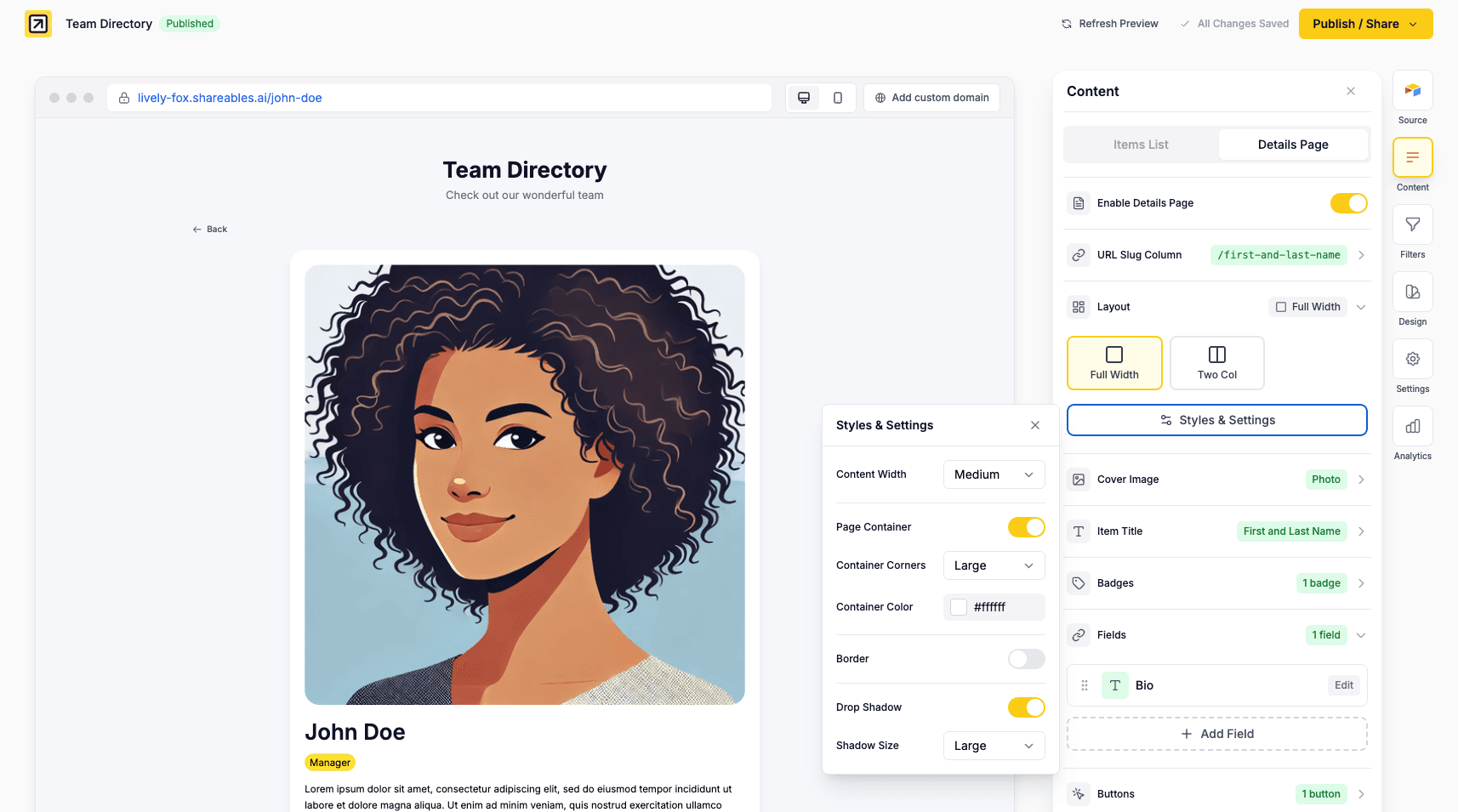
Best for:
- Long-form content
- Articles and blog posts
- Simple product pages
Two Column
Content is split into two columns with the cover image on one side.
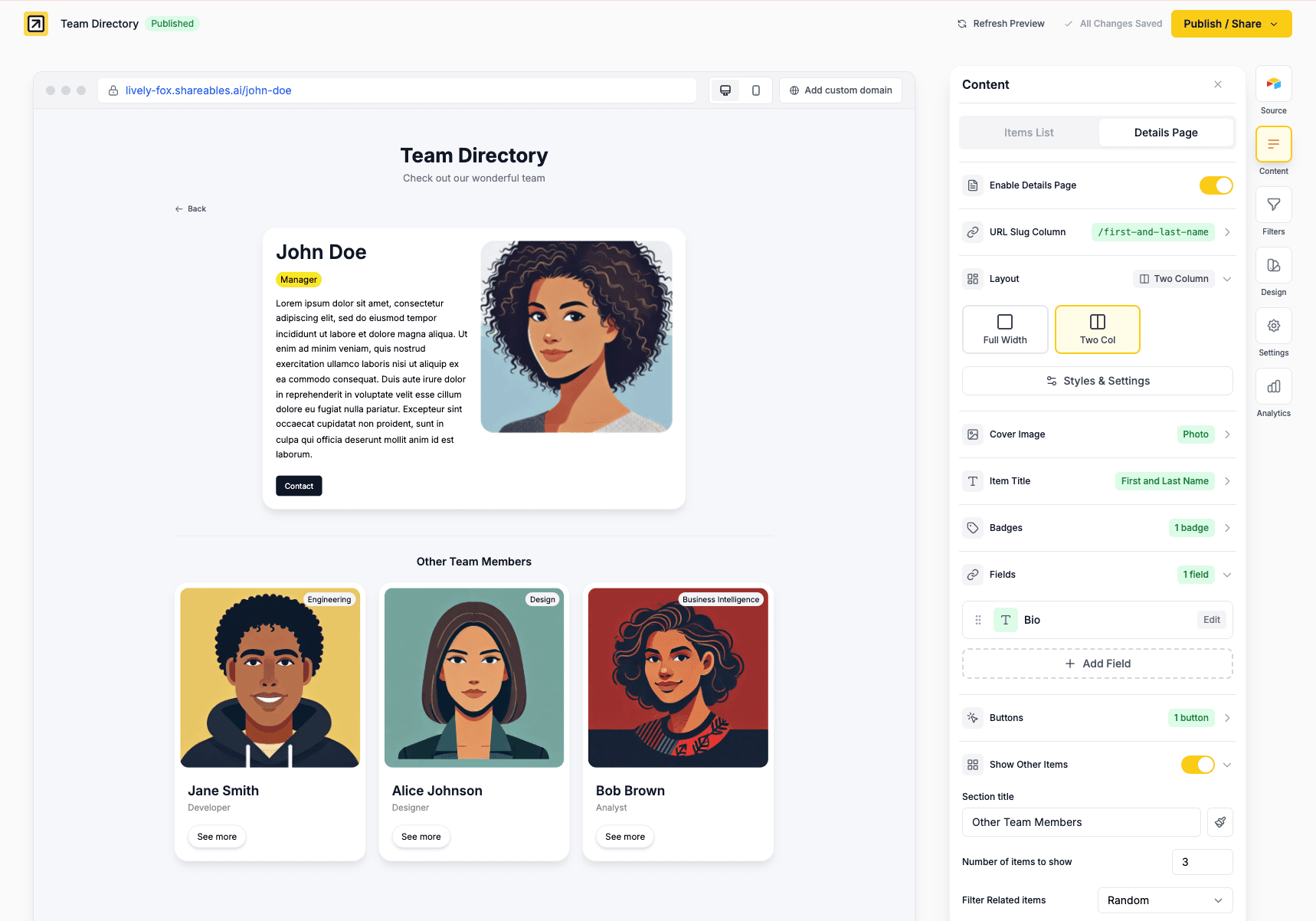
Best for:
- Product pages
- Team member profiles
- Portfolio pieces
Additional setting:
- Reverse Layout - Swap the position of the image and content columns
Sidebar
Content with a sidebar for additional information.
Best for:
- Documentation
- Property listings
- Detailed product specs
Details Container Styling
Access these settings via Styles & Settings in the Layout section:
- Content Width - Full Width, Medium, or Large
- Page Container - Enable/disable wrapper with custom corners and colour
- Border - Add borders with custom colour and width
- Drop Shadow - Add shadows in various sizes
Related
- Items & Details — Understand the difference between item lists and details pages
- Additional Fields — Add extra data fields to your items
- Brand Colors — Customise colours across your widget