Cover Images
Add featured images to your items to make them visually engaging.
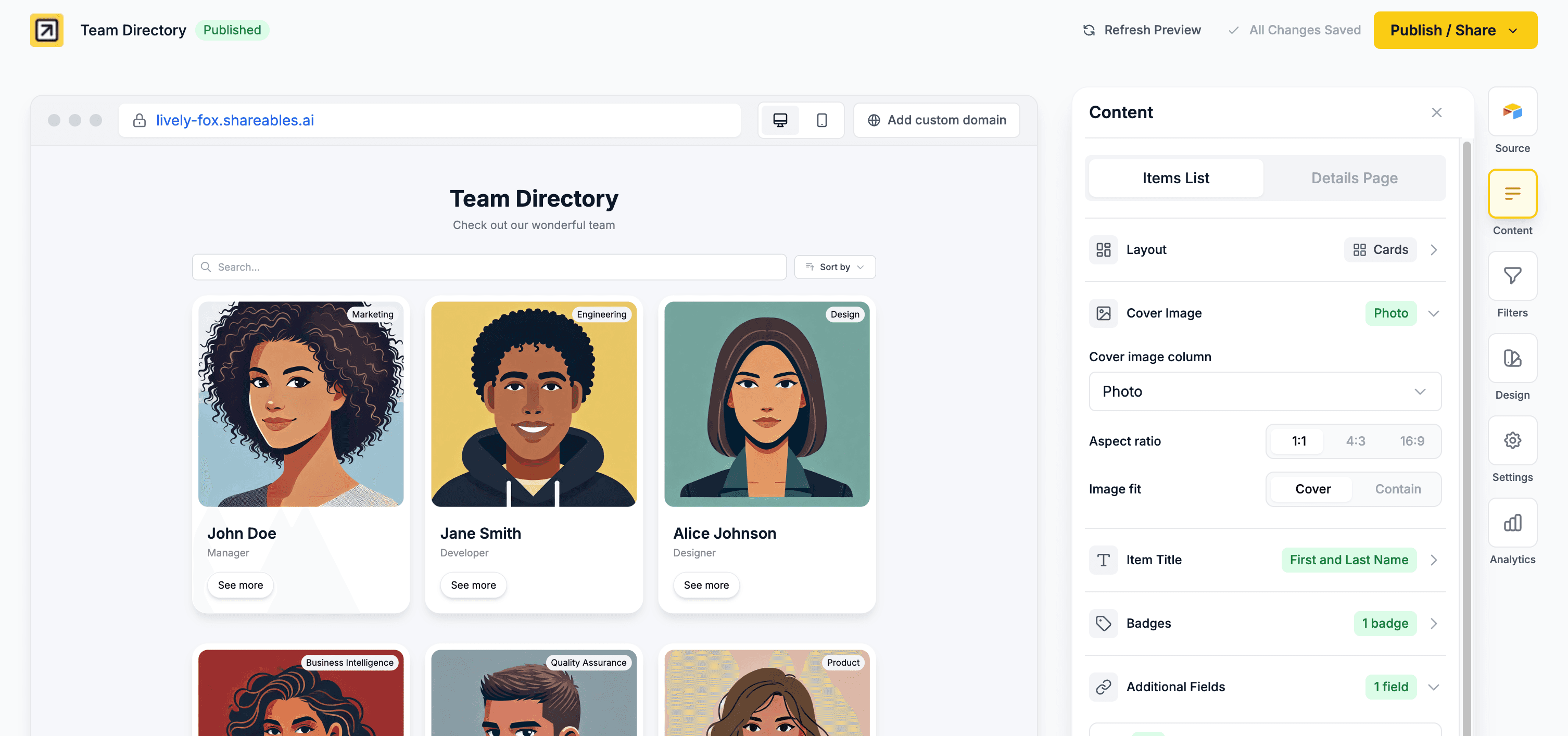
Adding a Cover Image to Items
Cover images appear at the top of each item in List and Cards layouts (not available for Table layout).
Open the Items tab
- Open your widget in the Creator
- Go to the Items tab
- Find the Cover Image section
Select an image column
Choose which column from your data source contains the images.
Configure display options
Adjust aspect ratio, image fit, and corners to match your design.
Using Google Sheets? Watch this quick guide on how to add images to Google Sheets for use as cover images in your widget.
Cover Image Settings
| Setting | Options |
|---|---|
| Column | Select the column containing your images or video URLs |
| Media type | Image (default) or Video (for YouTube, Vimeo, or direct video URLs) |
| Thumbnail | (Video only) Select a column containing thumbnail images for your videos |
| Aspect ratio | 1:1 (square), 3:4, 4:3, 4:6, 16:9 (widescreen), 21:9 (ultra-wide) |
| Image fit | Cover (fill and crop), Contain (show full image) — only shown for images |
| Corners | None, Small, Medium, Large |
| Alt text column | Select a column to use as the image alt text for accessibility and SEO |
Videos as cover media: Switch the media type to Video and select a column containing video URLs. Supported formats include YouTube (youtube.com/watch?v=..., youtu.be/..., youtube.com/shorts/...), Vimeo (vimeo.com/...), and direct video files (.mp4, .webm, .ogg, .mov). If a record’s URL isn’t a recognized video link, it will fall back to image rendering.
Video Thumbnails
When using video covers, you can set a Thumbnail column to display a custom image instead of the default video player or auto-fetched thumbnail. This creates a TikTok-style experience where users see a static image with a play button, and clicking it opens the video.
Set media type to Video
In the cover image Styles & Settings popup, switch the Media type to Video.
Select a thumbnail column
Choose a column from your data source that contains thumbnail image URLs. This appears as the Thumbnail setting below the media type toggle.
How it works
- If a record has a thumbnail image, it displays with a play button overlay. Clicking opens the video in a lightbox.
- If a record has no thumbnail image, the video renders normally (auto-fetched thumbnail for YouTube/Vimeo, or the video player for direct files).
- When a thumbnail is set, clicking the cover image plays the video instead of navigating to the details page.
The thumbnail setting is available on both item list covers and details page covers. It works with all supported video formats (YouTube, Vimeo, and direct video files).
The Corners setting is hidden for Cards layout when the item container is enabled, as the container controls the corner radius instead.
Cards layout tip: You can position badges to overlay the cover image. Go to the Badges section and set the position to “In cover image” to display badges on top of your images.
Alt Text
Set an Alt text column to provide descriptive text for your cover images. This improves accessibility for screen readers and helps with SEO.
Select any text column from your data source — its value will be used as the alt attribute on the image element. If no alt text column is selected or the value is empty, the image will have no alt text.
Alt text is also available on image fields in your additional fields. Click on an image field to find the Alt Text Column setting.
Aspect Ratios
| Ratio | Best for |
|---|---|
| 1:1 (Square) | Products, profiles, icons |
| 3:4 (Portrait) | Portrait photos, mobile screens |
| 4:3 | Traditional photos, thumbnails |
| 4:6 (Tall portrait) | Pinterest-style cards, tall images |
| 16:9 | Landscape images, video thumbnails, banners |
| 21:9 (Ultra-wide) | Cinematic banners, panoramic images |
Image Fit Options
Cover
Images fill the entire space, cropping edges if necessary to maintain the aspect ratio.
Best when:
- You want a consistent, uniform appearance
- Images are similar in composition
- Edge content isn’t critical
Contain
Images display in full without cropping, with letterboxing if the aspect ratio doesn’t match.
Best when:
- The full image must be visible
- Images have important content at the edges
- You have varying image sizes
Adding a Cover Image to Details Pages
Details pages have their own cover image settings, allowing you to display images differently than the item list.
Open the Details tab
- Open your widget in the Creator
- Go to the Details tab
- Make sure the details page is enabled
- Find the Cover Image section
Configure the cover image
Select a column and adjust the same display options: aspect ratio, image fit, and corners.
You can use the same image column for both items and details, but with different display settings — for example, a 1:1 crop on the item list and a 16:9 crop on the details page.
Image Carousels
If your cover image column contains multiple images, they will automatically display as a swipeable carousel with dot indicators.
How it works
- Airtable: Use an Attachment field and add multiple images to it. All attachments will appear in the carousel in the order they are listed.
- Notion: Use a Files & media property and add multiple files. All images will appear in the carousel.
- Google Sheets: Enter multiple image URLs in a single cell, separated by commas (e.g.
https://example.com/image1.jpg, https://example.com/image2.jpg).
If the column contains only a single image, it displays as a normal image with no carousel controls.
Carousels work on both item lists (List and Cards layouts) and details pages. On Table layout, only the first image is shown due to the compact cell size.
Tip: Carousel navigation (swiping or tapping dots) will not accidentally open the details page. Users can interact with the carousel freely.